Summary
- Flights can be logged with the CloudAhoy app.
- CloudAhoy can import data from multitude of data sources including GPS loggers, electronic flight bags, and avionics systems.
Flights can be imported into CloudAhoy through many different methods. This page will discuss how to import data using the Import Dialog. Check out the Importing Flights section of the help for other ways to import your flight data into CloudAhoy.
The easiest way to get started logging and debriefing flights is to use the CloudAhoy App for iOS. Flights logged with the app are automatically uploaded to our servers and immediately available to debrief. There are several reasons to log flight data with other systems and import it into CloudAhoy, however.
- The flight was already logged by another logger, such as ForeFlight‘s track log feature.
- Specific flight logging hardware that is not connected to CloudAhoy app, such as Stratus GPS.
- A pilot prefers to uses a stand-alone GPS logger such as Bad Elf Pro or DualGPS 160 rather than use a smart phone or a tablet in the cockpit.
- The Pilot has access to rich flight data via their avionics, such as a Garmin G1000.
- Logging with some of the other loggers does not require to remember clicking “Start” in order to start the logging.
To import files via the web interface, click the  button.
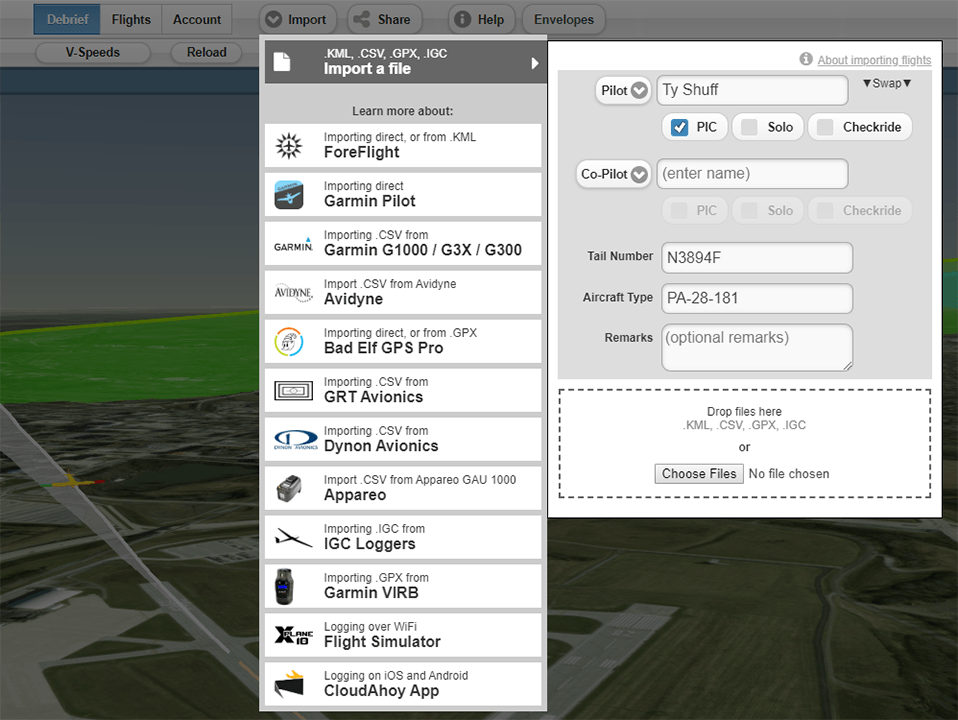
Click any of the items on the drop-down menu to find out how to import flight data from those systems into CloudAhoy – either directly from an iOS app, or by saving a file which you then import into CloudAhoy.
Note that the input form looks very much like our iOS CloudAhoy app for logging, including a “swap” button for swapping the pilots’ names, and drop-downs for selecting the roles of the flight’s crew members. After all, logging with our app or importing flight data from another device are both equivalent ways of adding a Flight to CloudAhoy’s flight list.
If you’re importing multiple flights, all the flights will have values that you’ve entered in the input form. If you need to change one of the flights, to add a co-pilot for example, you can edit the individual flights on the Flights Tab. This topic has more information.
Next, enter the flight’s crew names & roles, tail number and remarks.
Finally, drop one or more files with flight data to be imported (or select the files with  ).
).
LogTen Pro X
If you’re planning on exporting your flights to LogTen Pro X, see this topic to learn about how the crew member roles and PIC/Solo statuses are treated during export.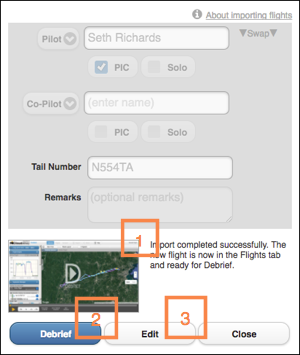
Each file will take a few seconds to be imported and analyzed.
- If you’ve imported a single flight, when the import is complete a thumbnail picture is displayed.
- You can now immediately debrief this flight by clicking Debrief.
- Optionally, you can edit the flight if you want to add/modify pilot/co-pilot, hobbs, etc.
If you’ve imported multiple flights, the total number of flights imported will be shown, and they will be available for debrief on the Flights Tab.
See below for more details about how to import data from one of the data sources which CloudAhoy supports, such as from ForeFlight, Garmin G1000 and more.
A Note for Organization Members
If you’re a member of an organization, the person who imports a flight is not required to be a pilot on that flight. This can be useful for organizations like flight schools who wish to have a single person import flights on behalf of the pilots. The person importing the flight is still required to have a CloudAhoy license.Further Reading
Logging flight data with The CloudAhoy app
Exporting flights to LogTen Pro X
Importing Flight Data
EFIS
Import from Garmin G1000
Import from Garmin G3X/G300/G5
Import from Avidyne
Import from GRT Avionics
Import from Dynon Avionics
Loggers
Import from Appareo GAU 1000
Import from Bad Elf Pro
Import from Dual XGPS160
Import from IGC loggers
Files
Import from GPX files
Import from KML files
Others
Log a simulated flight
Import from another iOS app
Import from Garmin VIRB