If your aircraft is equipped with Garmin G1000 avionics, you can debrief your flights using high-quality flight data from the G1000.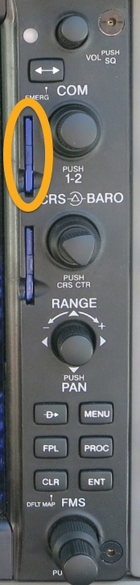
The G1000 writes flight data into an SD card. To debrief the flight you need to import that data into CloudAhoy.
Logging the flight
Important: please consult your aircraft’s G1000 manual for details specific to your aircraft.
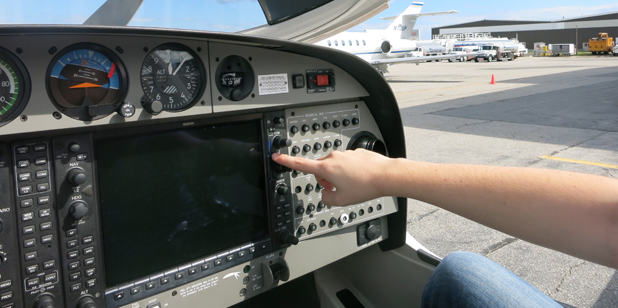
- Before turning on the G1000 system, insert an SD card into the top slot in the MFD. If you are renting the aircraft, you would usually bring your own SD card. If there’s already an SD card in the slot, consult with the plane’s owner.
- IMPORTANT: Make sure the SD card is not write-protected. See this.
- During flight, the G1000 automatically writes the flight data into your SD card.
- After the flight, remove your SD card from the top slot of the MFD. You now have the flight data in the SD card.
Importing a single flight to CloudAhoy
The CSV file
The files will are typically named log_yymmdd_hhmmss_AirportCode.csvFor example: log_180627_101356_KBED.csv
- Insert the SD card in a card reader connected to your desktop or laptop computer. The SD card’s folder will appear on the desktop.
- Open the folder. It would typically contain a data_log folder, and in it the flight file in CSV format.
- Open a web browser and login to your CloudAhoy account.
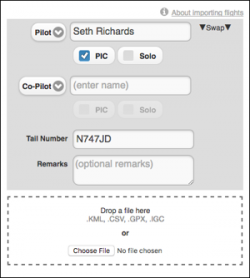
- Click the
 button at the top of the screen. Enter the flight’s pilot names, tail number and optional remarks (you can edit all these later), click Choose File and select the CSV file with the data, then click Open. Alternatively, drag and drop the CSV file from your computer into the drop area.
- The flight now appears in your flight list, and is ready to be debriefed.
Importing multiple flights to CloudAhoy
You can import any number of flights in one import operation using the steps outlined above; in step 4, simply select (or drag/drop) multiple files. Please note that the information in the dialog box, including the pilots’ names and remarks, would be applied to all the imported flights. If needed, then after the import you can edit specific flights and modify this information.
>Debriefing with Rich data
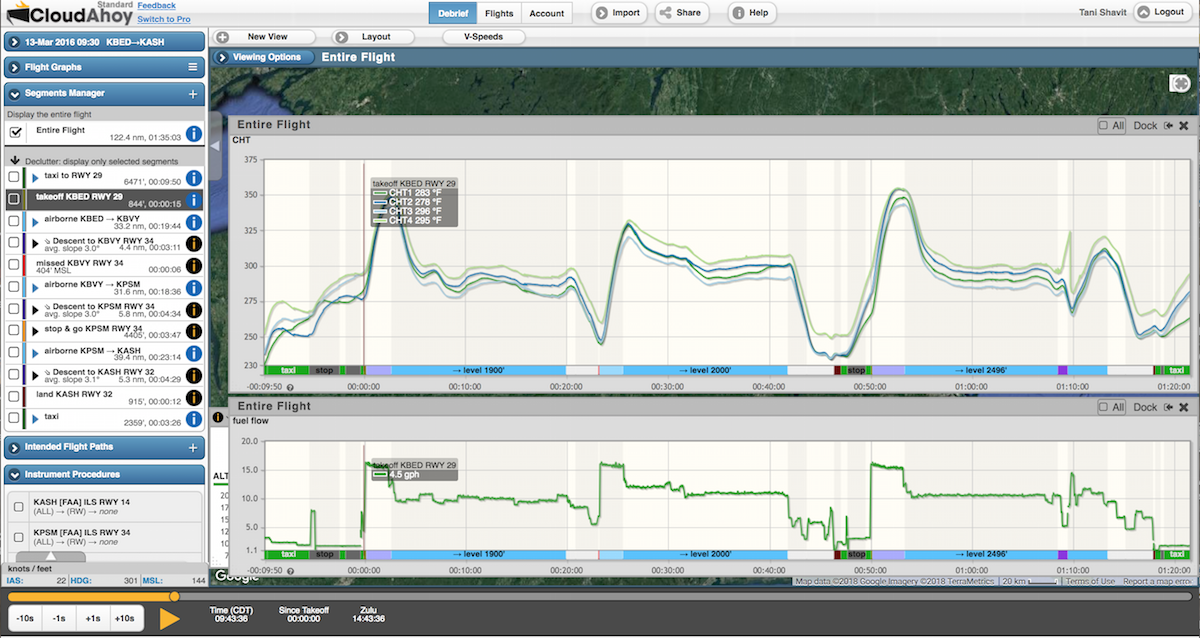
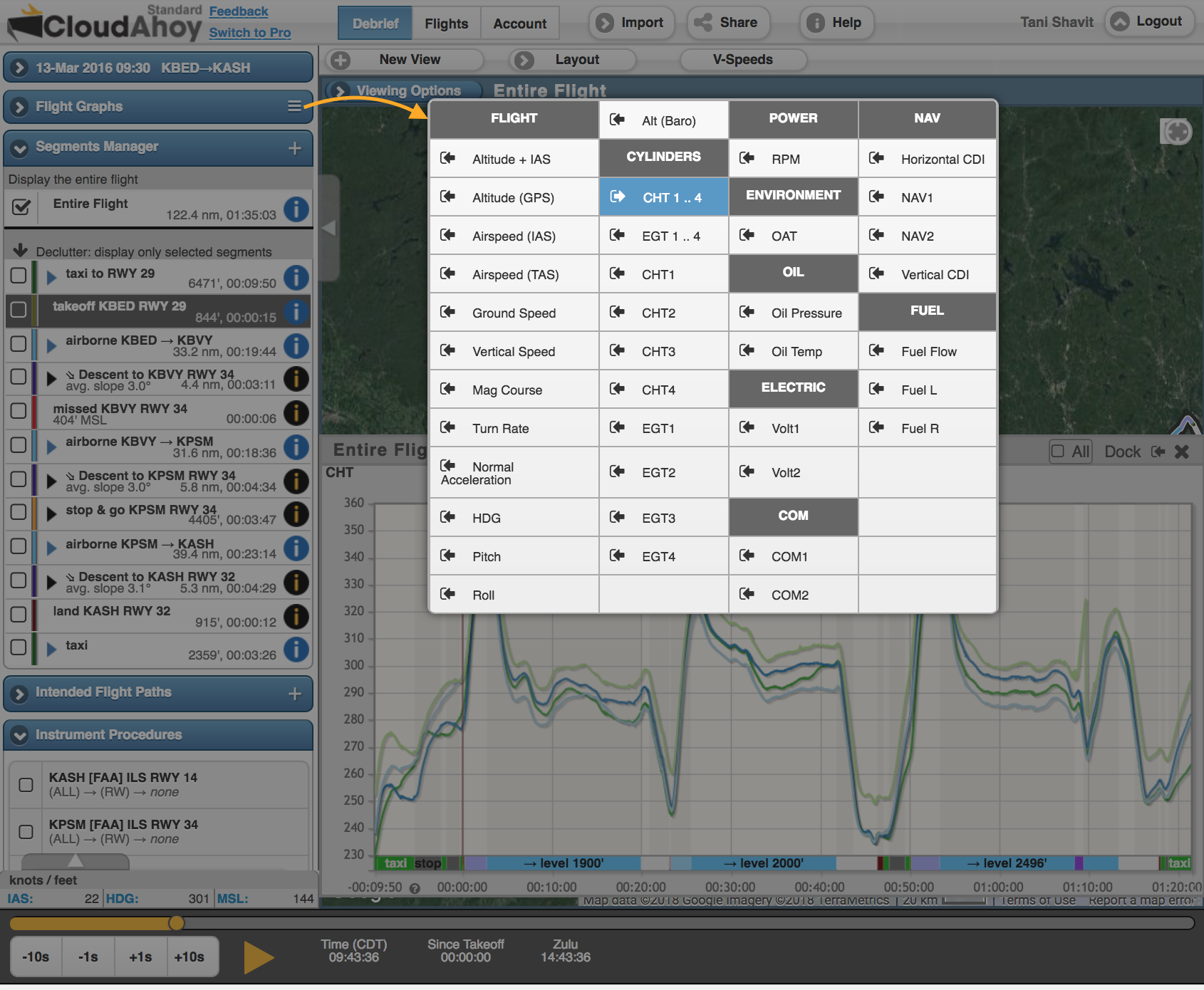
The rich G1000 data can be displayed using Flight Graphs. When debriefing, actual flight data will be used for AHRS (pitch/bank), IAS, TAS, baro altitude and wind. You can display engine data including CHT, AGT, oil etc. The rich data can be viewed as graphs, as shown in the following screenshot. Notice at the bottom of the graph the color coding for the flight segmentation, so you can correlate the engine behavior to the specific section of the flight:
Displaying CHT and fuel: