Summary
- Computer: using the Flight Import button
- iOS: from app to app
Import from a KML file on a computer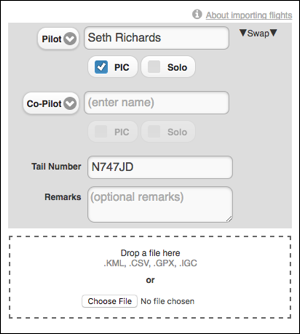
- Login to your account from the web
- Click the Import button at the top of the page.

- Enter the flight information including tail number and pilot(s) name(s).
- Click Choose File, select the KML file, then click Import. Alternatively, drag and drop the KML file from your computer onto the drop area.
Import from another iOS app
The CloudAhoy iOS app can import flight data from other iOS apps, in either KML or GPX format. This allows you to upload flights which were logged by other apps into your CloudAhoy account.
To import, use a “Share” (or equivalent) button in the app that has the data, export in either KML or GPX format, and select CloudAhoy as the receiver of the data.
Problems with some KML Files
Some KML files have only GPS coordinates, without the times that these GPS locations were measured. Such files can be displayed in Google Earth, but cannot be imported to CloudAhoy. When that is the case, try to export the data in GPX format, if available, or contact the tool’s vendor to enhance the KML data.Also, KML files imported to CloudAhoy must have exactly one track. CloudAhoy cannot import files with no tracks, or with two or more tracks