Summary
- Export selected flights from CloudAhoy to LogTen Pro X
- Available on iOS and MacOS
You can export your CloudAhoy flights to LogTen Pro X, one of the leading electronic logbook providers.
The export feature transfers data from selected CloudAhoy flights to LogTen Pro X, saving you manual data entry in LogTen Pro X. With one tap on a button in CloudAhoy, LogTen Pro X flight logs are automatically created with over 20 fields per flight – including the departure and destination airports, the exact times of rotation and touch-down, the taxi times, the flight crew, and the aircraft’s tail number and type.
Supported devices
This feature is available on both iPad and the Mac. Of course, to use it you will need a LogTen Pro X app installed on your device.
Note: this feature is not supported on Windows.
How do I export flights to LogTen Pro X?
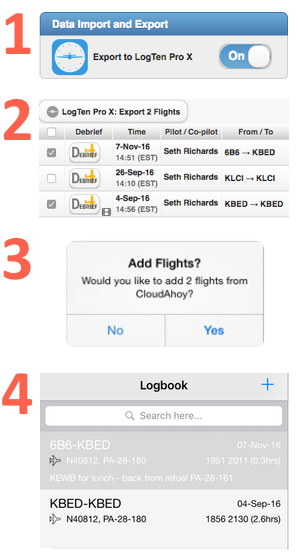
- Enable LogTen Pro X flights export: go to your CloudAhoy’s Account tab, and switch on “Export to LogTen Pro X”. You only need to do this once.
- Select the flights you want to to export using the checkboxes in the Flights tab. You can select all by checking the box in the header line. Once selected, click or tap the LogTen Pro X button.
You can export any flight; it’s as easy to enter today’s flight as it is to enter a flight from last year. - LogTen Pro X will ask you to confirm. Tap Yes.
- Your flights are added to LogTen Pro X.
How will CloudAhoy Pilot Roles and Solo/PIC status appear in LogTen Pro X?
CloudAhoy will automatically map certain combinations of crew member names into the corresponding name fields provided by LogTen Pro X.
When exported from CloudAhoy into LogTen Pro X, a flight with:
- a single crew member with role ‘Pilot’ will be placed in the LogTen Pro X ‘PIC/P1 Crew’ field.
- If the CloudAhoy ‘Pilot’ is also marked PIC, the total time of the flight will be entered in the LogTen Pro X PIC time field.
- a crew member with role ‘Pilot’ and another with role ‘Co-Pilot’ will be placed in the LogTen Pro X ‘PIC/P1 Crew’ and ‘SIC/P2 Crew’ fields, respectively.
- If the CloudAhoy ‘Pilot’ is marked PIC and is the currently logged in CloudAhoy user, the total time of the flight will also be entered in the LogTen Pro X PIC time field.
- a crew member with role ‘Student’ and another with role ‘Instructor’ will be placed in the in the LogTen Pro X ‘Student’ and ‘Instructor’ fields, respectively.
- If the CloudAhoy ‘Instructor’ is the currently logged in CloudAhoy user, the total time of the flight will also be entered in the LogTen Pro X Dual Given field. If that user is also marked PIC in CloudAhoy, the total time of the flight will be entered in the LogTen Pro X PIC time field.
- If the CloudAhoy ‘Student’ is the currently logged in CloudAhoy user, the total time of the flight will also be entered in the LogTen Pro X Dual Received field.
- a single crew member with role ‘Student’ and also marked ‘Solo’ will be entered into the LogTen Pro X ‘Student’ field, and the total time of the flight will be entered in the LogTen Pro X Solo time field.
- If the CloudAhoy ‘Student’ is also marked PIC, the total time of the flight will also be entered in the LogTen Pro X PIC time field.
Any other combinations of crew member roles and PIC and Solo status will result in the crew member marked PIC being entered into the LogTen Pro X ‘PIC/P1 Crew’ field, and the other crew member ben entered into the LogTen Pro X ‘SIC/P2 Crew’ field. If neither CloudAhoy crew member is marked PIC, the first crew member will be placed in the ‘PIC/P1 Crew’ field, and the second will be placed in the ‘SIC/P2 Crew’ field.
What if I export the same flight twice?
Suppose for example that you select all the CloudAhoy flights and export them; some of the flights have already been exported before. It’s safe to do so – no duplicated flights will be created in LogTen Pro X. If you have edited a flight in CloudAhoy, for example changed the co-pilot’s name, export it again and the data will be updated in LogTen Pro X.
Further Reading