Summary
- Run X-Plane 10 or 11 and log the simulated flight using CloudAhoy’s iOS app; no additional hardware needed
- Alternatively, log the flight on an EFB and import the data to CloudAhoy
Two ways to log an X-Plane flight
….1. Using CloudAhoy’s iOS app on iPhone or iPad,
….2. Using an EFB such as ForeFlight or FlyQ, then importing the data to CloudAhoy.
These two methods are described below.
Using CloudAhoy’s iOS app to log an X-Plane flight
Using CloudAhoy’s iOS app on iPhone or iPad, you can log your simulator flights the same way you can log your real aircraft flights. No additional hardware is needed – the data is shared via WiFi.
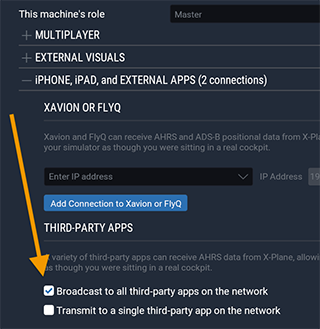 X-Plane 11
You would need the following setup; if you are familiar with connecting X-Plane 11 to EFBs like ForeFlight or FlyQ, connecting CloudAhoy is identical.
- The computer running X-Plane 11 and the iOS device running CloudAhoy must be on the same WiFi network.
- In X-Plane 11, select Settings > Network.
- Open the iPhone/iPad section.
- Check “Broadcast to all third-party apps on this network”.
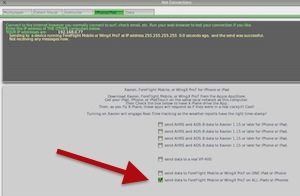
X-Plane 10
You would need the following setup; if you are familiar with connecting X-Plane 10to EFBs like ForeFlight or FlyQ, connecting CloudAhoy is identical.
- The computer running X-Plane 10 and the iOS device running CloudAhoy must be on the same WiFi network.
- In X-Plane 10, select Settings > Net Connections.
- Select the iPhone/iPad tab.
- Check the last checkbox (“send data to ForeFlight or WingX Pro7 on ALL iPads or iPhones”).
Logging a simulator flight is the same as logging a real flight: enter the pilot name (or names), the tail number, and optional remarks, then tap the RECORD button. Verify the GPS type is SIMULATOR before you start recording.
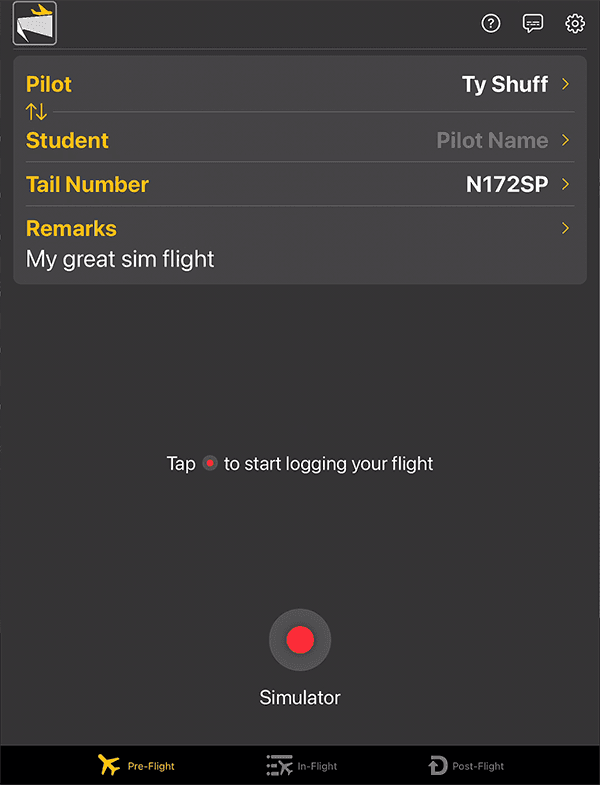
IMPORTANT - foreground only!
While CloudAhoy logs a simulator flight, it must be in the foreground. If you switch to another app, CloudAhoy’s logging will stop. When CloudAhoy logs a simulator flight, it prevents the screen from locking.
Logging a X-Plane, FSX or P3D flight using an EFB
If you use an EFB like ForeFlight or FlyQ during the flight, you can import the flight track into CloudAhoy after the flight. See this.
About the simulated wind
When you fly a real flight, CloudAhoy uses the actual winds along the flight path and computes the TAS and IAS from the aircraft’s ground speed and the wind (see this). When you log a simulated flight, CloudAhoy assumes no wind (and therefore GS=TAS).
Further Reading