Summary
- Display your flight track in 2D-track, 3D-track, or cockpit-view
- Analyze the entire flight, or selected maneuvers
- Analyze flight graphs
- Debrief the route’s accuracy
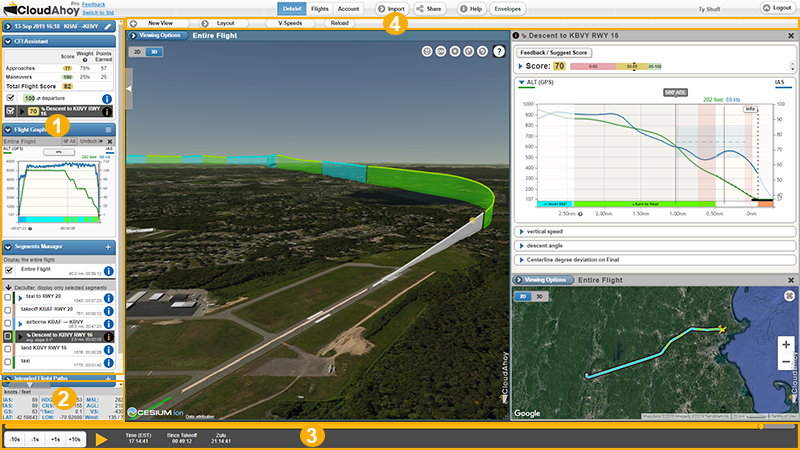
CloudAhoy generates a layout like the one shown above the first time a flight is debriefed. CloudAhoy chooses an interesting segment (usually the first approach to landing, but not always), and displays that segment in a second view, along side the primary view displaying the entire flight. CloudAhoy also opens that interesting segment’s Segment Info window, and also opens a Flight Graph in the debrief tools panel (1) that shows the altitude and indicated airspeed for the entire flight.
You can return to this layout at any time by clicking selecting the Maneuver Analysis layout from the Layout button in the tool bar (4).
.
tip
The best way to explore the debrief tab’s tools is by experimenting. The interface is quite intuitive; even before reading the details below, we suggest trying the interface, debriefing your flight. If you want to return to a default layout, simply click the Layout button and select the layout you want.The other components of the debrief are:
- The debrief tools panel.
- The data panel.
- The time line, allowing you to move the aircraft position and view its flight parameters at that point, as well as control an animation that recreates the flight.
- The toolbar, containing buttons for creating new views, resetting to the default layout, and setting the V-speeds of the aircraft used in the flight.
(1) The debrief tools panel
Each of the tools in this panel has a blue heading and can be opened or closed by clicking/tapping the blue area.
- Flight information: information includes the pilot names, the tail number, and the runways used for takeoff and landing plus the exact wheels-up and wheels-down time.
- Flight Graphs: displays graphs of selected entities like airspeed and altitude. More…
- Flight Segments: displays the segments of your flights. Has tools for adding custom segments. More…
- Intended Flight Path: a tool for drawing the intended flight path, to compare against the actual flight flown. More…
- Instrument Procedures: a tool for analyzing instrument approach procedures. More…
- Nav: a tool for debriefing the aircraft’s location relative to navaids. More…
Views
The main view, as well as each additional view, has a  button. Use this to set the display mode, and the display options. Use the
  button to open new views. See Views
Each view has the ability to be decluttered so that it shows one, many, or no segments of the flight. See Decluttering
The 3D-track and 3D-cockpit view modes allow you to debrief your flight in 3D from different points of view. See 3D Views
The timeline
Use the timeline to move back and forth in time. The current time is shown under the slider in
- Local time (using the current time zone)
- Time since takeoff. Time prior to the first takeoff, such as when taxing to the runway, is displayed as negative.
- UTC / Zulu time.
You can move the time, and the aircraft icon on the map would move accordingly. Several equivalent ways to set the time:
- Using the slider to quickly get get to any time along the flight.
- Use the -10s … +10s buttons for finer control
- Use the
 control to run animation at 1x speed up to 10x speed.
 - Click one of the segments. The time is set to the beginning of the segment.
- Drag the time cursor on segment info and flight graphs.
The data panel
The current flight’s altitude, airspeed, and heading are displayed in a panel just above the play control. Additional parameters, such as vertical speed and wind, can be displayed and hidden by clicking the tab at the top of the panel. The units in which the values are displayed can be selected from the Account tab.
Debriefing scenarios
These topics show how to use the features of the debrief tab to debrief different types of flights, or different scenarios encountered during a flight:
Further Reading
Views
3D views
Decluttering
Flight graphs
Flight segments
Intended Flight Path
Instrument procedures
Video
Nav debriefing