Summary
- Use decluttering to focus on an individual segment, or set of segments.
- Decluttering may be used in 2D Track and 3D track views.
Why “Declutter”?
Decluttering allows you to pick and choose exactly the segments you’d like to have shown in CloudAhoy views and profiles.
For example, you can isolate a single traffic pattern while keeping your entire flight up in a 2D Overview using the Maneuver Analysis layout.
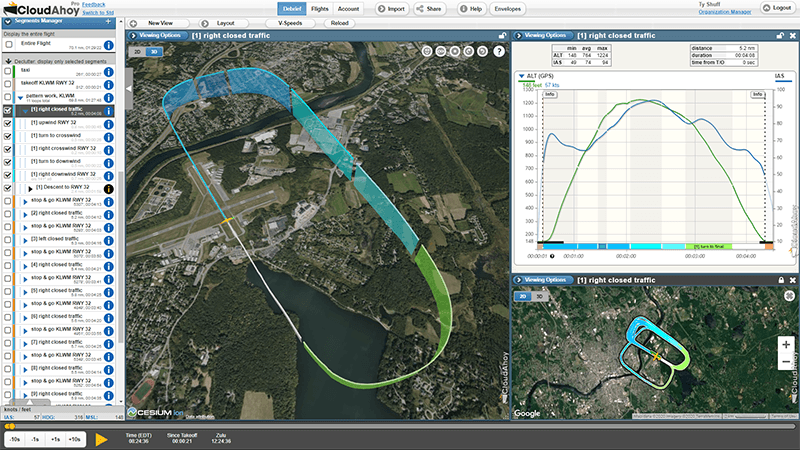
The example above shows a single pattern in the primary view, the entire flight in the 2D Overview, and a graph showing Airspeed and Altitude for the entire pattern.
The next example shows an entire training flight, with windows decluttered to show two back to back steep turns, along with a profile for one of those turns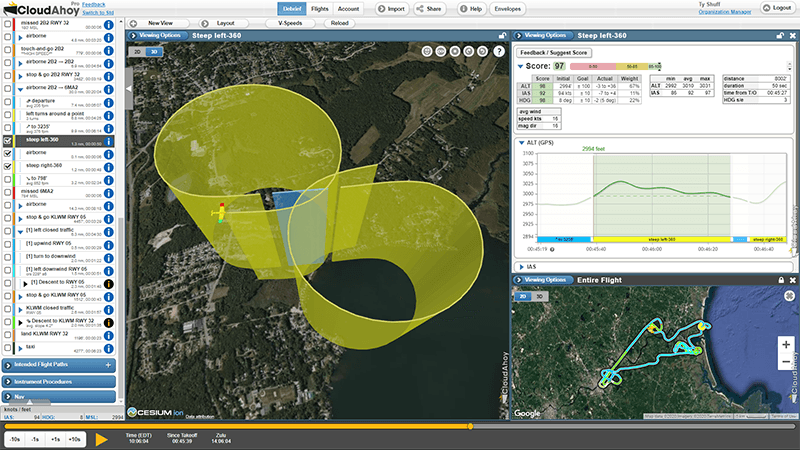 :
How to Declutter
Quick guide
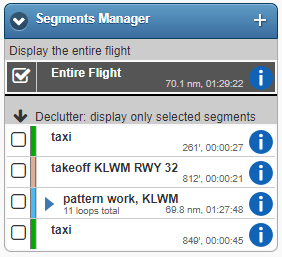
Select the segments you want to see by using the Segment Manager
Decluttering Step-by-Step
Decluttering can be used in many different scenarios; in this example, we want to focus on a single traffic pattern.
Starting point:
– Select the Maneuver Analysis layout if it is not already selected
– Set the primary view to 2D by clicking the 2D/3D Toggle
– The Segments Manager should be set to “Entire Flight”
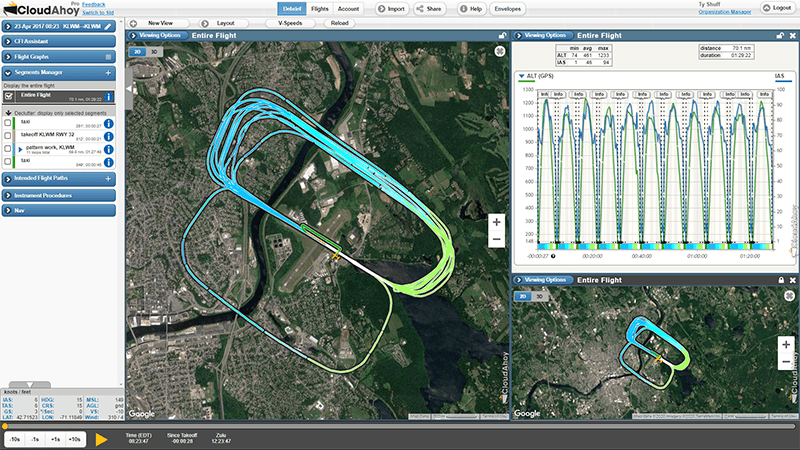
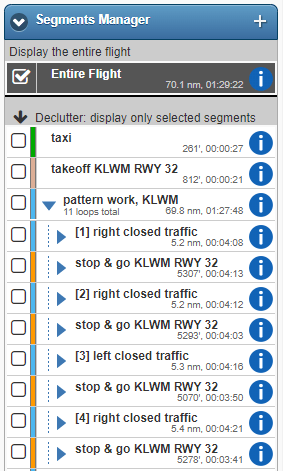 The Pattern Work, KLWM has 11 loops – it is an hierarchical segment; let’s open this hierarchy to see each of the individual loops:
□ Click the Pattern Work, KLWM segment — the hierarchical segment opens to show each on the 6 individual loops
And now – we can focus on a single traffic pattern.
To Declutter…
□ Click on the checkbox to the left of [6] left closed traffic –> the view is now decluttered and only the selected loop is visible in the primary view.
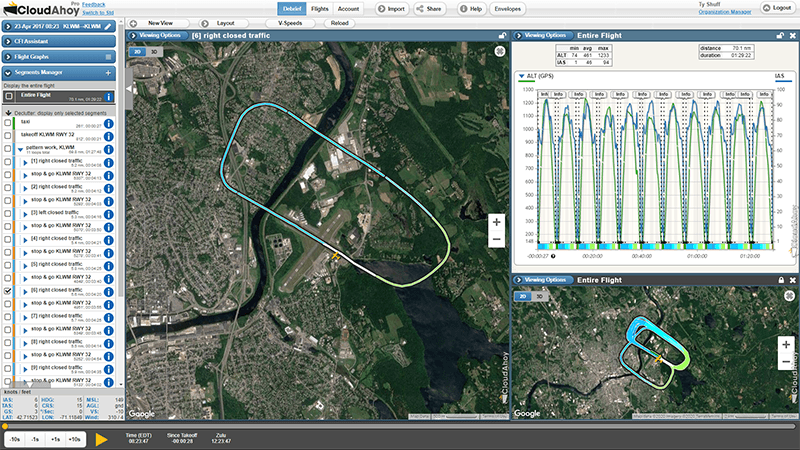
□ The Segment Information View did not update. This happened because this view will always follow the timeline, unless it is locked. Click on the pattern in the Segments Manager to advance the timeline forward and show the entire pattern in the Segment Information View.
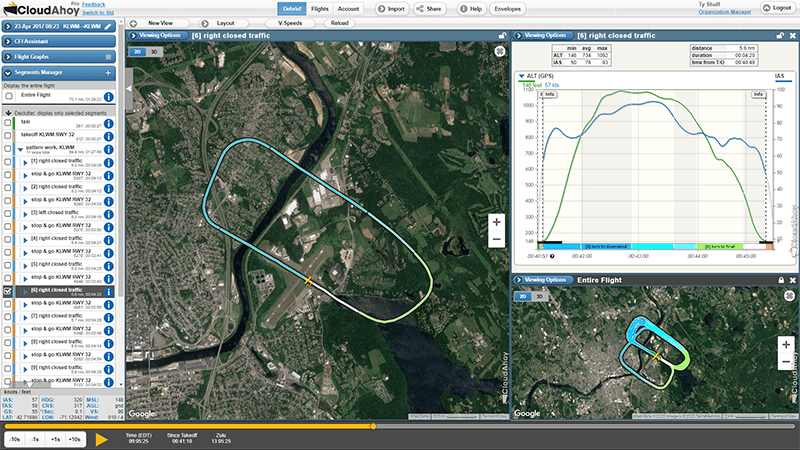
Note that:
- [6] right closed traffic is an hierarchical segment – when you clicked on its checkbox all the sub-segments are shown. You may click on each of the subsegments too, of course.
- When you clicked on the checkbox of [6] right closed traffic, the checkbox of “Entire Flight” was turned off automatically.
- The title of the active view changed to [6] right closed traffic, indicating that name and start time of the first visible segment in the view.
More details
Locking
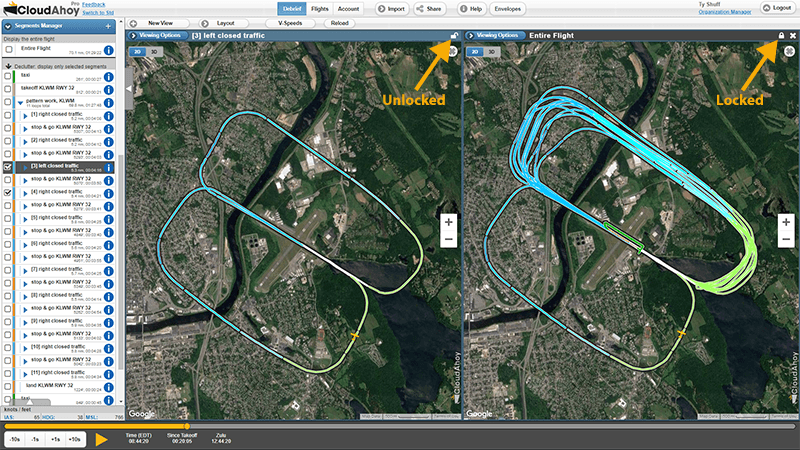
Decluttering is global. however individual views can be locked and unlocked by clicking on the padlock icon in the upper right corner. When a view is unlocked changes to decluttering will affect it. Conversely, when a view is locked no decluttering changes will apply to it. Unlocking a view will apply the current decluttering configuration.
Flight Graphs
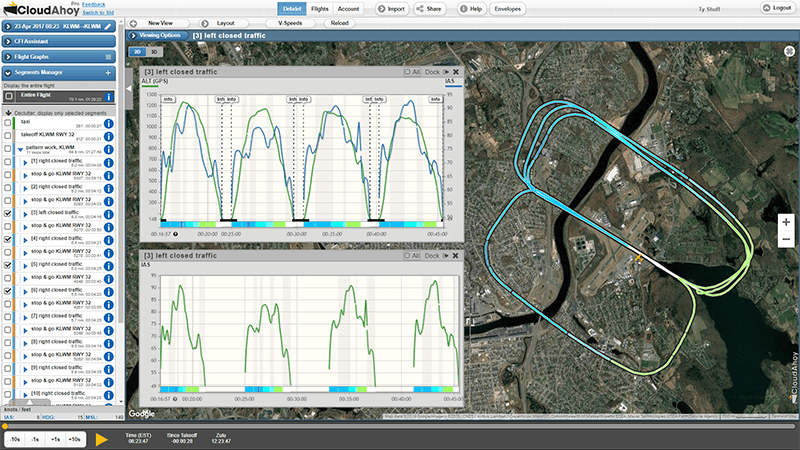
By default, any open flight graphs – both docked and undocked – will show the same segments as the currently active view. Changing which segments are visible in the current view will also change all open flight graphs.
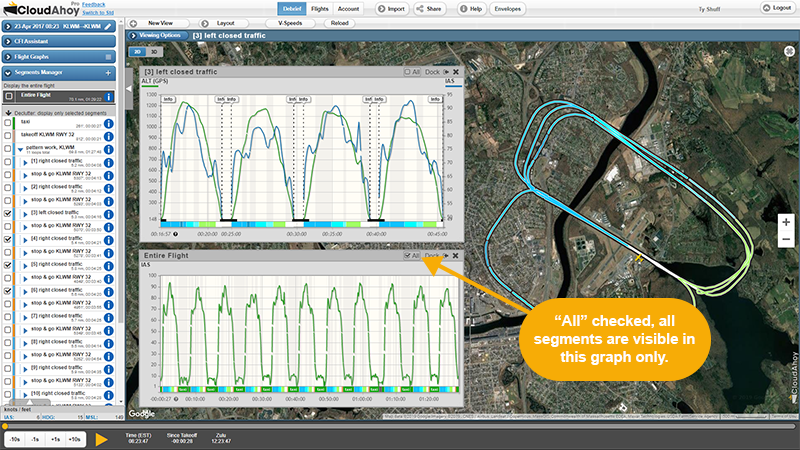
In the image below, the active view and both the vertical speed and altitude & indicated airspeed flight graphs show the 4 closed traffic patterns, without the stop-and-go segments between them:
Clicking the  button in the title bar of a flight graph will cause that graph to display all segments, regardless of the segments currently visible in the active view.
In next image, the indicated airspeed flight graph has had its box checked, so it now displays all segments even though the active view is still decluttered to show just 4 traffic patterns. This allows you to see the altitude and airspeed for all segments, while still focusing on the vertical speed of the first three patterns.