Summary
- CloudAhoy is fully integrated with Cesium-based 3D technology, and runs on any platform.
- For best results use 3D on capable hardware.
Using 3D Track
 CloudAhoy’s 3D
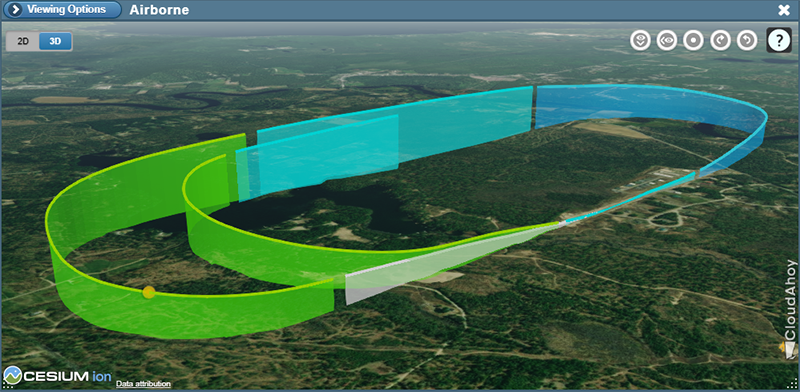
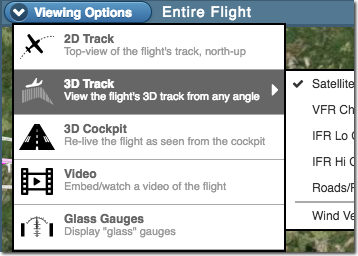
CloudAhoy can display flight information in 3D:
– 3D track mode, view from any angle,
– 3D cockpit mode, to re-live the flight,
– 3D published instrument approaches.
Browsers, Computers
CloudAhoy’s 3D is based on Cesium technology, and is available on all modern browsers and computer platforms including iPad, Android, Windows and Macs.
Hardware and Software Requirements
For smooth operation, the 3D requires relatively recent hardware (especially graphics card), and updated browser and O/S software. We recommend –
| Mac: | MacOS 10.10 and above, updated browsers |
| PC: | Windows 10 and above, updated browsers |
| iPad: | iPad Air 2, iPhone 6, and above. iOS 9 and above |
Older configurations may work as well.
3D on the iPad
We recommend debriefing from the CloudAhoy app. 3D debriefing using the iPad’s Safari might not work well due to limitations of Safari.
3D works well in iPad Air 2 or in iPhone 6. Even if your iOS device is older, it may still work well. Note that on the iPad you can also view your flight in the Google Earth app.
Setting the point of view
For mouse (or touch-pad) computers:
– pan by dragging the mouse
– zoom with the scroll control (typically the mouse wheel).
– rotate by holding Ctrl and dragging the mouse right/left
– look up/down by holding Ctrl and dragging the mouse up/down
You can combine the look up/down and rotate by dragging the mouse in different directions while holding Ctrl. With a little practice you’ll find that controlling the point of view becomes an almost automatic activity.
For touch device like iPad:
– pan: move one finger
– zoom: pinch (two fingers)
– rotate: two fingers CW or CCW motion
– look up/down: two fingers moving up/down
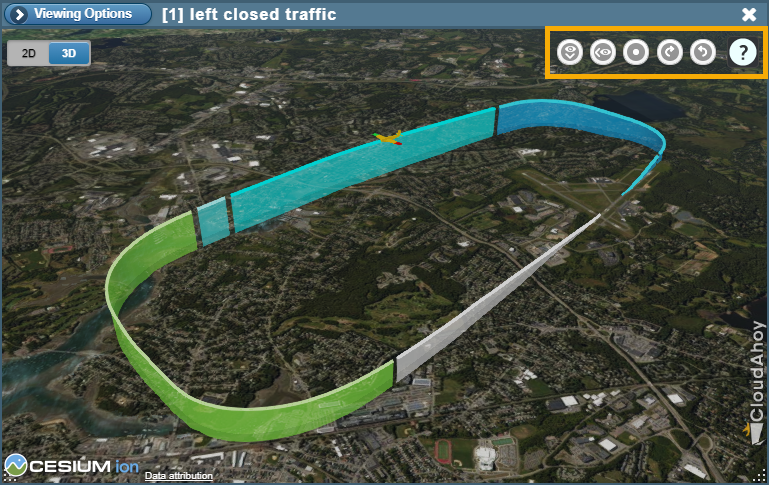
Using the point of view controls:
Views displaying 3D tracks or the 3D cockpit also have point of view controls that you can click/tap to change the point of view.
– 3D track:
– 3D cockpit:
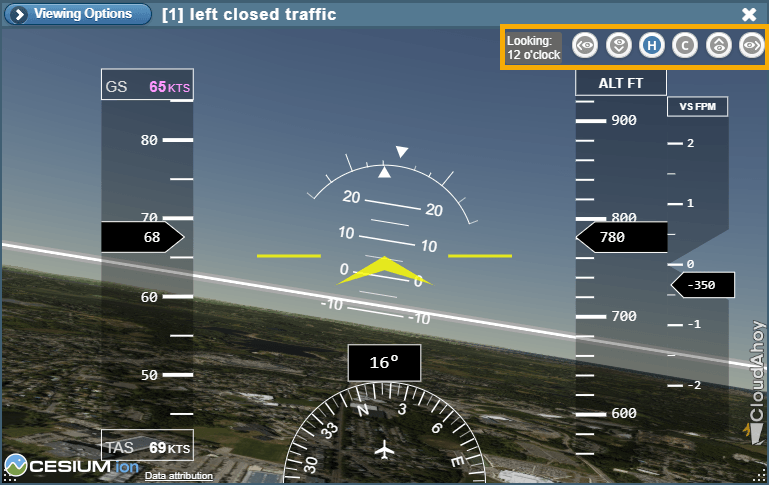
See the Views page for information about using the point of view controls, or watch the video below for a quick tutorial.
What if your computer is underpowered for 3D?
Most modern computers run 3D very well. If your computer / laptop / iOS device is underpowered for 3D, you can– Debrief in 2D
– Find another computer which can run 3D
– On older iOS devices, view cockpit mode on the Google Earth app.