Summary
- Invite pilots / CFIs to be your CloudAhoy buddies.
- Share any flight with any of your buddies.
You can invite any pilot to be your Buddy. After he or she accepts, you can share flights with one another, and the flights will show up in the Flights tab in each of your accounts.
This mechanism is useful for sharing with fellow pilots who were not together on the same flight. Example: a student pilot can share a solo flight with his or her CFI.
Adding Buddies
- Go to the Account tab, and scroll down to the Buddies section
- Tap “Invite” button
- Enter the email(s) of the pilot(s) you want as a buddies, and tap “send”.
If the pilot invited by you has a CloudAhoy account, he or she will see the invitation in their Buddies tab, and will be able to accept the invitation (or reject it).
If the email address of the invited buddy is not in the CloudAhoy database, the invitation will be sent via email. The receiver can then join CloudAhoy and accept the invitation from his or her new CloudAhoy account.
Sharing a flight with Buddies
- Debrief the flight in the Debrief tab, or select the flight in the Flights tab
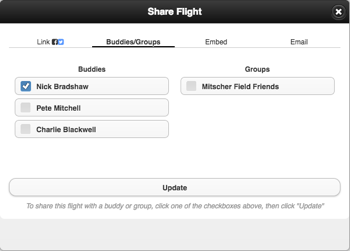
- Click the “Share” button (on top bar)
- A dialog opens. Select “Buddies/Groups” .
- Check/uncheck buddies that the flight should be shared with.
- Click “Update”.
The flight will now be listed in the flight list of the selected buddies. Your buddy or buddies will be able to debrief the flight but will not be able to modify it. Each buddy can remove the flight from his or her flights list in the Flights tab.
Un-sharing a flight is similar, click on the Share button, then on Buddies/Groups, and uncheck the names. Un-sharing will remove it from your buddy’s flight list.
Further Reading
Pilot / co-pilot (or CFI)
Share a flight in email
Share on your Facebook or Twitter page
Create a flight-share link
Embed a flight debrief in a web page
Share with a group