Summary
- The envelope parameters affect the CFI Assistant score you receive
- Create your own tolerances for flight maneuvers and approaches
- Envelope Editor https://www.cloudahoy.com/envelopes
Envelopes Overview
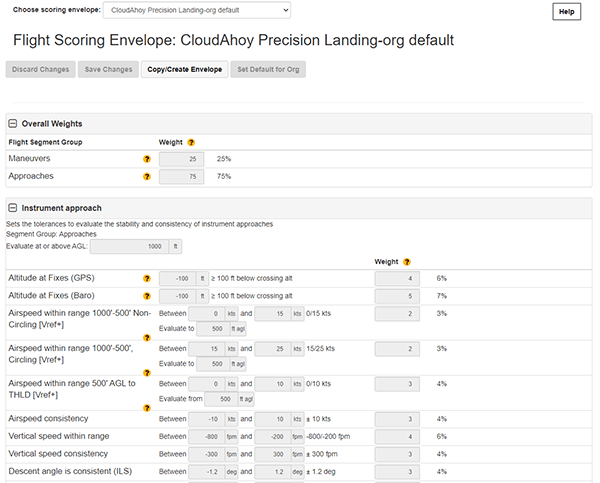
In CloudAhoy, an envelope is a collection of scoring criteria used by the CFI Assistant to score your maneuvers and approaches. By default, every flight is scored using the “CloudAhoy Basic” envelope. For example, in that default envelope it specifies that the airspeed during the last 500 feet AGL of a VFR approach should be consistent and vary no more than +/- 10 knots. Consistency is graded based on the average speed; as you exceed the floor and ceiling specified, the points lost will increase significantly.
Using the Envelope Editor, you can create your own envelope and change any of the predefined scoring criteria. You could reduce the approach airspeed variation to +/- 5 knots or increase it to +/- 20 knots. If you are working with a flight instructor, they may suggest envelope parameters you should use. As you become a more advanced pilot, you may choose to create a more stringent envelope.
If you are part of a CloudAhoy Organization, the organization can create envelopes that are shared with all organization members. This allows everyone in the organization to have a standard scoring criteria to compare pilot proficiency and progress.
Using Envelopes
Every CloudAhoy account has the “CloudAhoy Defaults” envelope and every flight will be scoring using that envelope until you override those settings.
Create Your Own Envelope
If you want to set your own flight tolerances for scoring, you can create your own Envelope.
- Select an envelope to copy (such as CloudAhoy Defaults)
- Click the “Copy/Create Envelope” button
- Edit the name of your new envelope
- If you are an Organization Administrator, you choose whether your new envelope is private (just for you) or to be shared with the entire Organization.
- Change any of the scoring parameters or weights
- Save you new envelope
Modifying Envelopes
- Select an envelope to edit
- Edit the name of your new envelope
- If you are an Organization Administrator, you choose whether your new envelope is private (just for you) or to be shared with the entire Organization. If you edit a shared envelope and make it private, you will specify which envelope other organization members should use instead of the one you are making private.
- Change any of the scoring parameters or weights
- Save you modified envelope
You cannot edit the “CloudAhoy Defaults” envelope. If you want to make changes, create a copy and edit it. See “Create Your Own Envelope” above.
Deleting an Envelope
- Select the envelope you want to delete
- If you are allowed to delete the envelope, there will be a red “Delete Envelope” button. Click it.
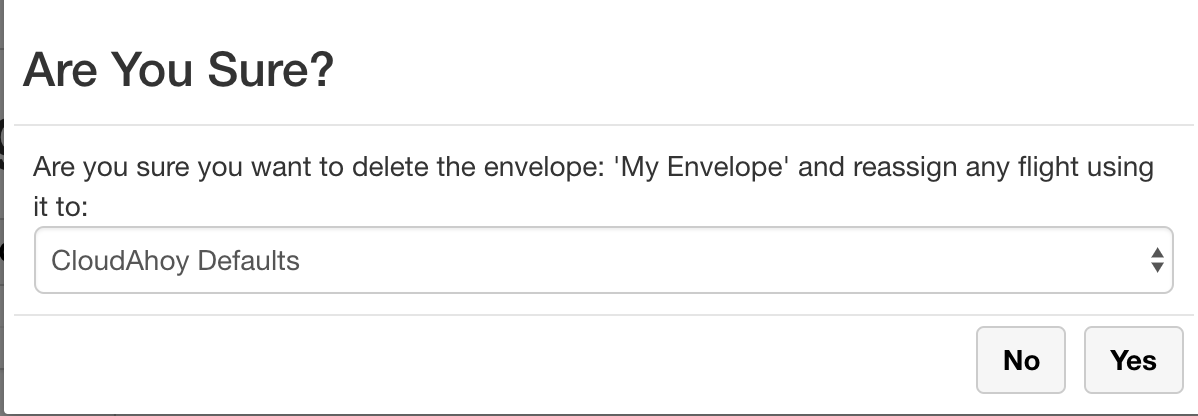
- You will be promoted to confirm the delete and to choose what envelope should be used in place of the one you are deleting.
You cannot delete the “CloudAhoy Defaults” envelope. Also, only organization administrators can delete shared envelopes.
Choosing Your Default Envelope – User
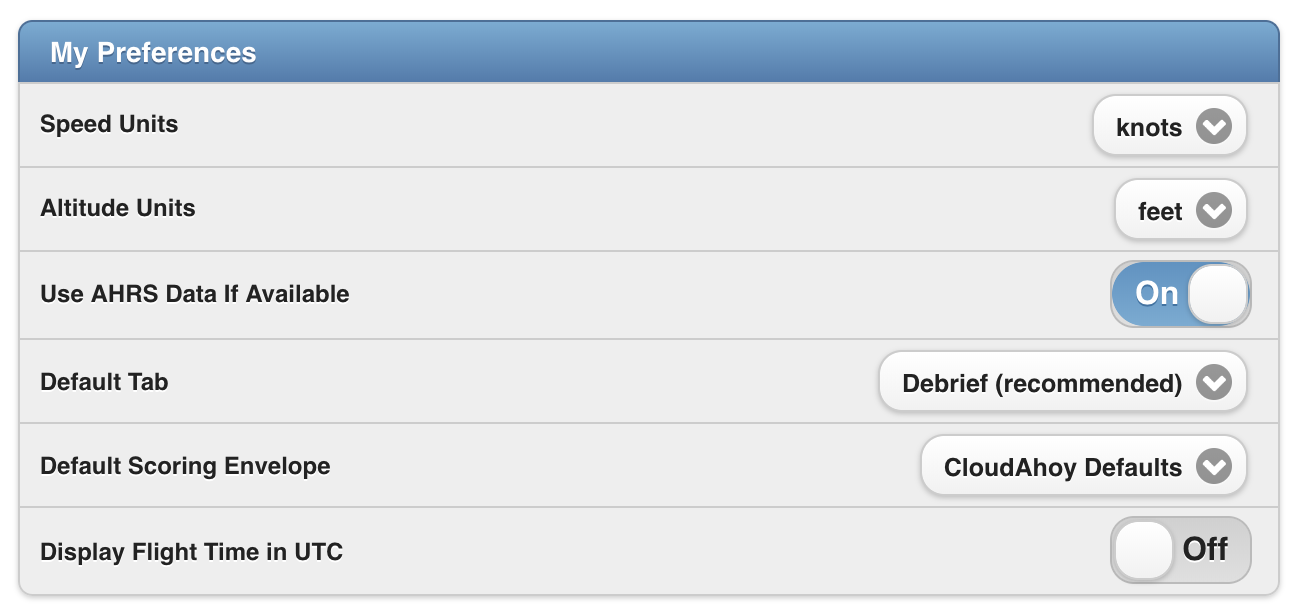
You can choose which envelope to use for all your future flights. Each new flight that you import will use this preference. Past flights will continue to use whatever envelope they were set to. To choose your default envelope, click on the “Account” tab and scroll down to the “My Preferences” section. Use the menu next to “Default Scoring Envelope” to choose your preferred envelope.
You can only perform this action if you have a non-organization account, or are an organization admin.
Choosing Your Default Envelope – Organization
If you are an administrative member of an organization, you can set the default envelope used by all members in the Envelope Editor. Select the envelope you want to define as the default, then click Set as Default for Org.

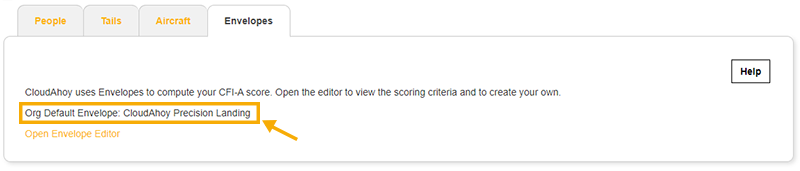
Organization Administrators can view the default envelope for their organization by clicking on the Envelopes Tab from within the Organization Manager.
Changing the Envelope for a Flight
Each flight stores which envelope to use when generating its score. You can change this at any time. You can change the flight envelope in two places.
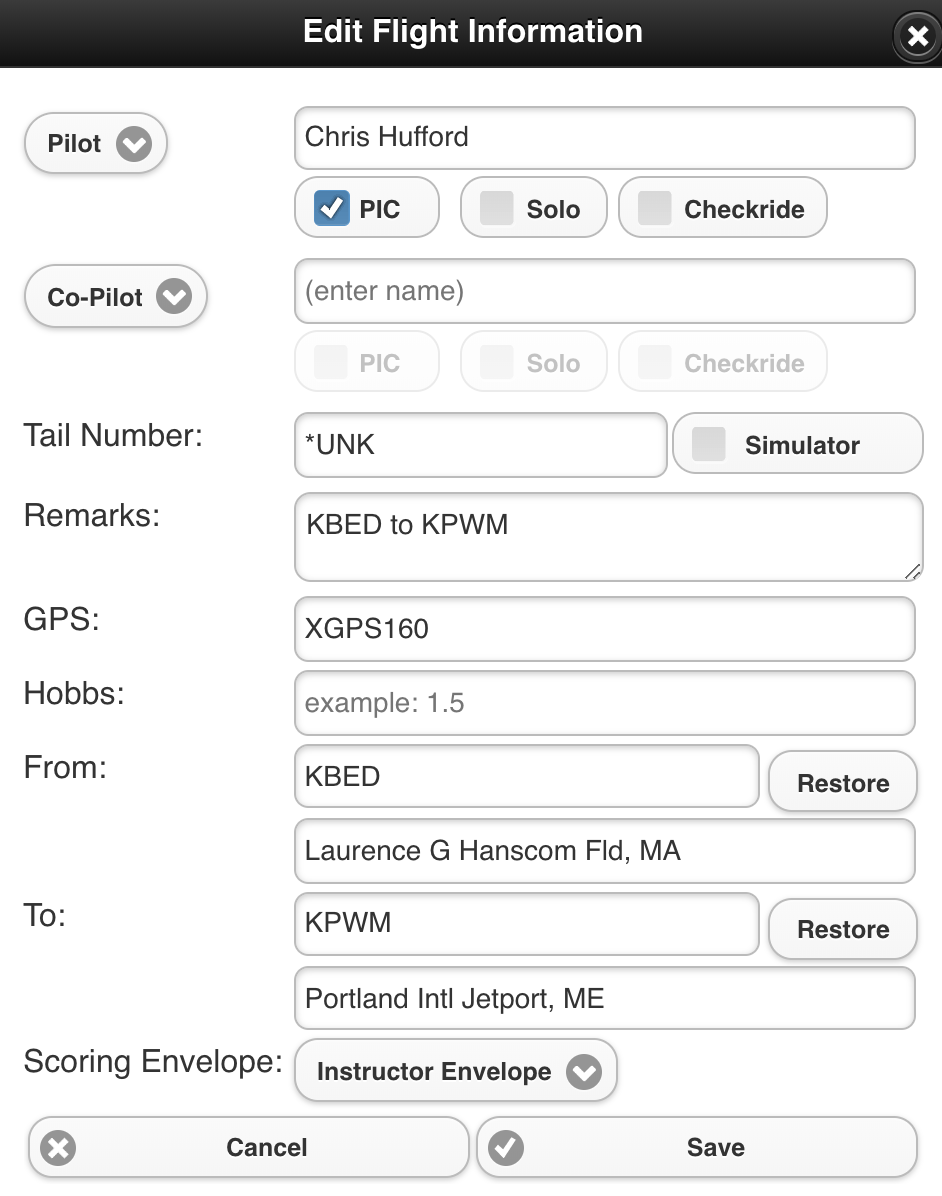
- From the Flights tab, click the “Edit” button on the upper-right. Toward the bottom of the “Edit Flight Info” box, there is the “Scoring Envelope” menu. Choose the envelope you want and click “Save”.
- From the Debrief tab, click the pencil icon in the “Flight information” panel on the left. That brings up the “Edit Flight Info” box. Choose the “Scoring Envelope” you want and click “Save”.
When CloudAhoy changes the global envelope
Viewing Envelopes
You can view all of your envelopes using the Envelope Editorhttps://www.cloudahoy.com/envelopes/.
If you have created any custom envelopes you will also be responsible for keeping them up to date. CloudAhoy will, from time to time, adjust default envelope parameters and possibly even add additional criteria. Once this is done you will have a few options regarding how to proceed.
- Do Nothing – You can continue to use the customized envelope that you have been using all along.
- Change the envelope for individual flights – Load any flights whose envelopes you would like to change and modify the envelope used by clicking on the edit button in the flights tab.
- Remove a customized envelope – Deleting a custom envelope will cause all flights using it to revert to the CloudAhoy Basic envelope. To do this, follow these steps:
- Go to the Envelope Editor and choose your custom envelope
- Click “Delete Envelope”
- It will say “Are you sure you want to delete the envelope: ‘your envelope’ and reassign any flight using it to:”. You choose the CloudAhoy Basic envelope.
- Click “Yes”
Your custom envelope will be gone, and any flight that used it will now use CloudAhoy Basic instead.
Parameters – Rich Data vs GPS
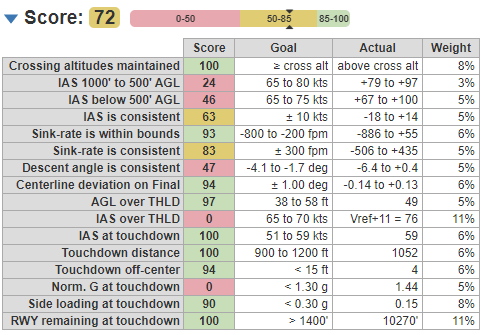
Each scored segment contains multiple parameters that combine to make the final score. CloudAhoy will choose parameters from the full list based on the equipment available to you in your airplane. For example, if you are debriefing using rich data from a Garmin G1000, your score will include paramters like G at touch down, side loading, IAS at touchdown, and more. You can view the parameters used to score a maneuver using the Segment Information View.
Let’s take a look at two instrument approaches recorded with different types of equipment.
Here is an example of an ILS approach that was debriefed with rich data from a G1000:
And this is an example of an ILS approach flown using a GPS only data source, the CloudAhoy Mobile App.
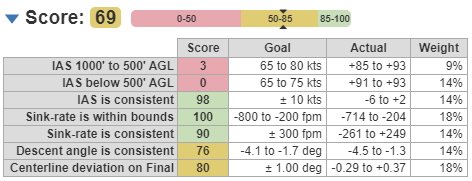
Notice the difference in the parameters used as well as the difference in the final weighting. Both of these approaches were graded using the CloudAhoy Precision Landing Envelope.