Summary
The Aircraft tab in the Organization Manager utility www.cloudahoy.com/organization lets lets you:
- Define Aircraft Types and specify their characteristics including v-speeds
- IMPORTANT: the Aircraft characteristics and V-Speeds are significant for accurate analysis, and even more so for accurate scoring (grading)
- Associate aircraft Make/Model with Aircraft Type
- Select a default Aircraft Type to be used by CloudAhoy analysis and scoring when not not explicitly specified or implicitly determined.
All this setting shared in your organization
Aircraft
The Aircraft tab has two sections:
Aircraft Type section:
- The purpose of this section is to capture the type of airplanes flown the organization, and their characteristics.
- Aircraft Type is a collection of aircraft characteristics and v-speeds, with a name.
- Example: “T-6A”, “PA-44”, “Cessna 172S”
- It is highly recommended to define Aircraft Type for each type of the aircrafts flown in the organization, this will improve the accuracy of the analysis and scoring.
Associate Make/Model with Aircraft Type section
- The purpose of this section is to establish an association from the Make/Model (if available) to one of the Aircraft Type.
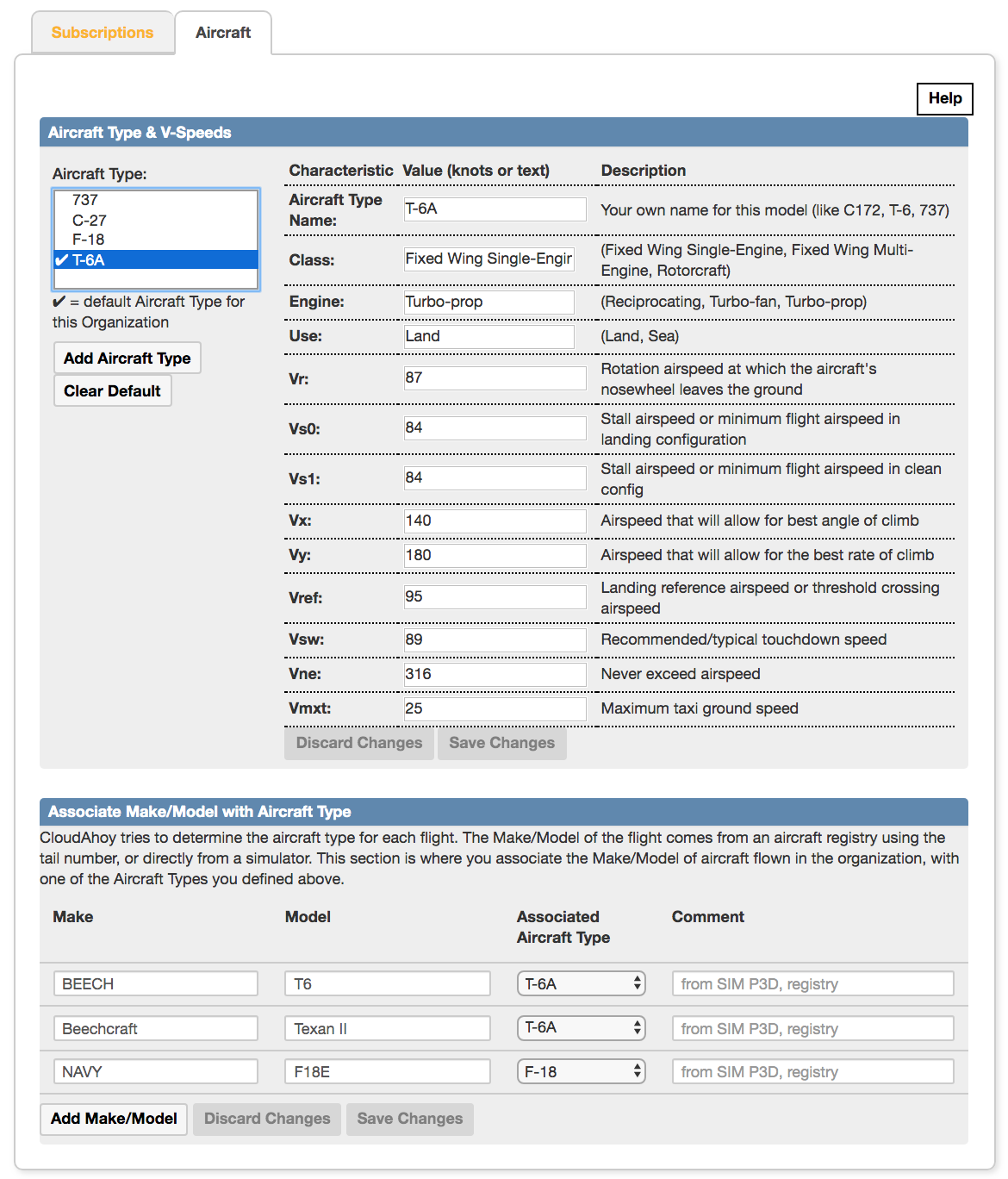
- Examples: if the Make/Model reported by the simulator is “Beechcraft/Texan II” associate it with the Aircraft Type “T-6A”.
- Make/Model are often (but not always) reported automatically to CloudAhoy from an external source.
- Examples: in simulation flights Make/Model are often reported in the simulator metadata; when a tail number is specified CloudAhoy searches the registry and other databases and may retrieve the Make/Model.
- It is possible to have multiple Make/Model which are of the same Aircraft Type.
- Example: in the screenshot below there are two different Make/Model which are of the same Aircraft Type (T-6A in this case); this is a common case.
- Setting a default is possible – do it if relevant.
- Example: in the screenshot below T-6A is set as the default. For any flight for which the Aircraft Type can not determined via association with a Make/Model and is not explicitly specified (TBD), CloudAhoy will use T-6A characteristics and V-Speeds for the analysis and scoring.
Step by Step
To begin, go to the Organization Manager by following the link to www.cloudahoy.com/organization or login you www.cloudahoy.com and click on the Organization Manager link on the upper-right corner, under you name.
- In the Organization Manager, click on the “Aircraft” tab.
Step-1: Define Aircraft Type
- Click on the “Add Aircraft Type” button ⇒ you will get a form.
- The “Aircraft Type Name” may be any name you want, choose a name that is meaningful for your organization. This name will be displayed to the pilots in the Debrief tab and Flights tab, and in various reports.
- Fill out the values, and click “Save Changes”.
The screenshots below show the process:
Initial state, no Aircraft Type is defined yet. To get started click the “Add Aircraft Type” button.
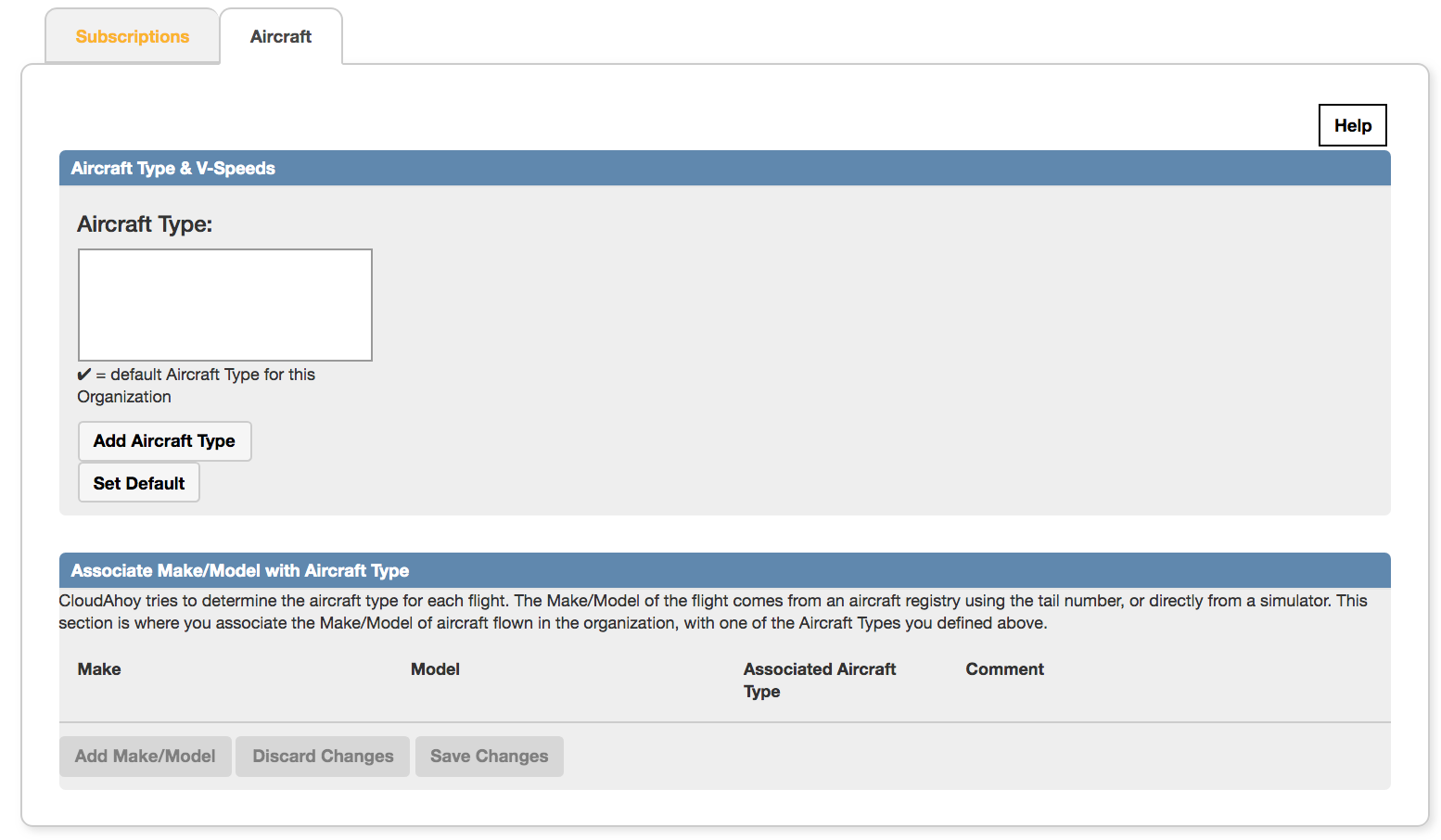
After click on “Add Aircraft Type” button ⇒ you get an empty form
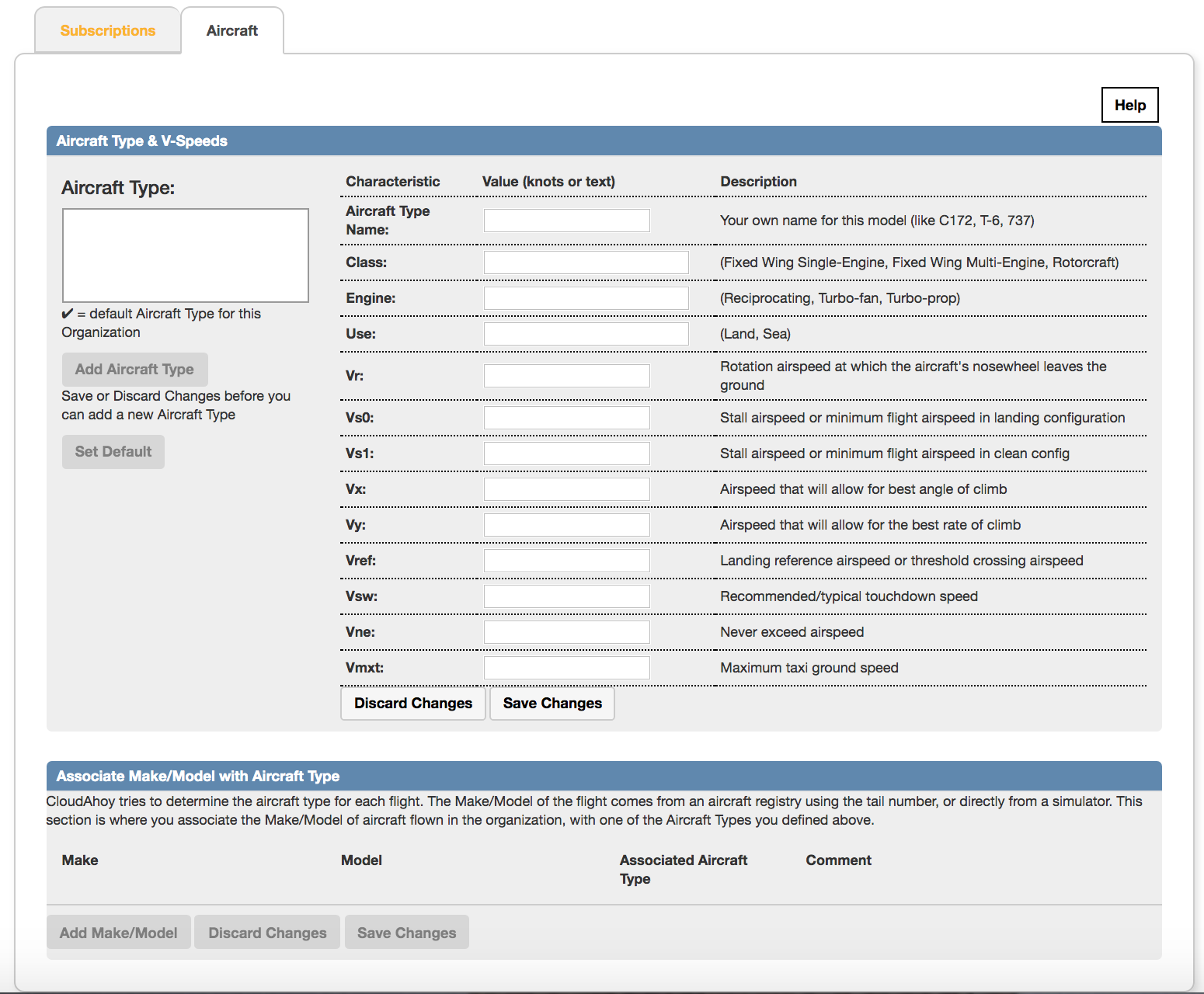
Type in the Name and values ….
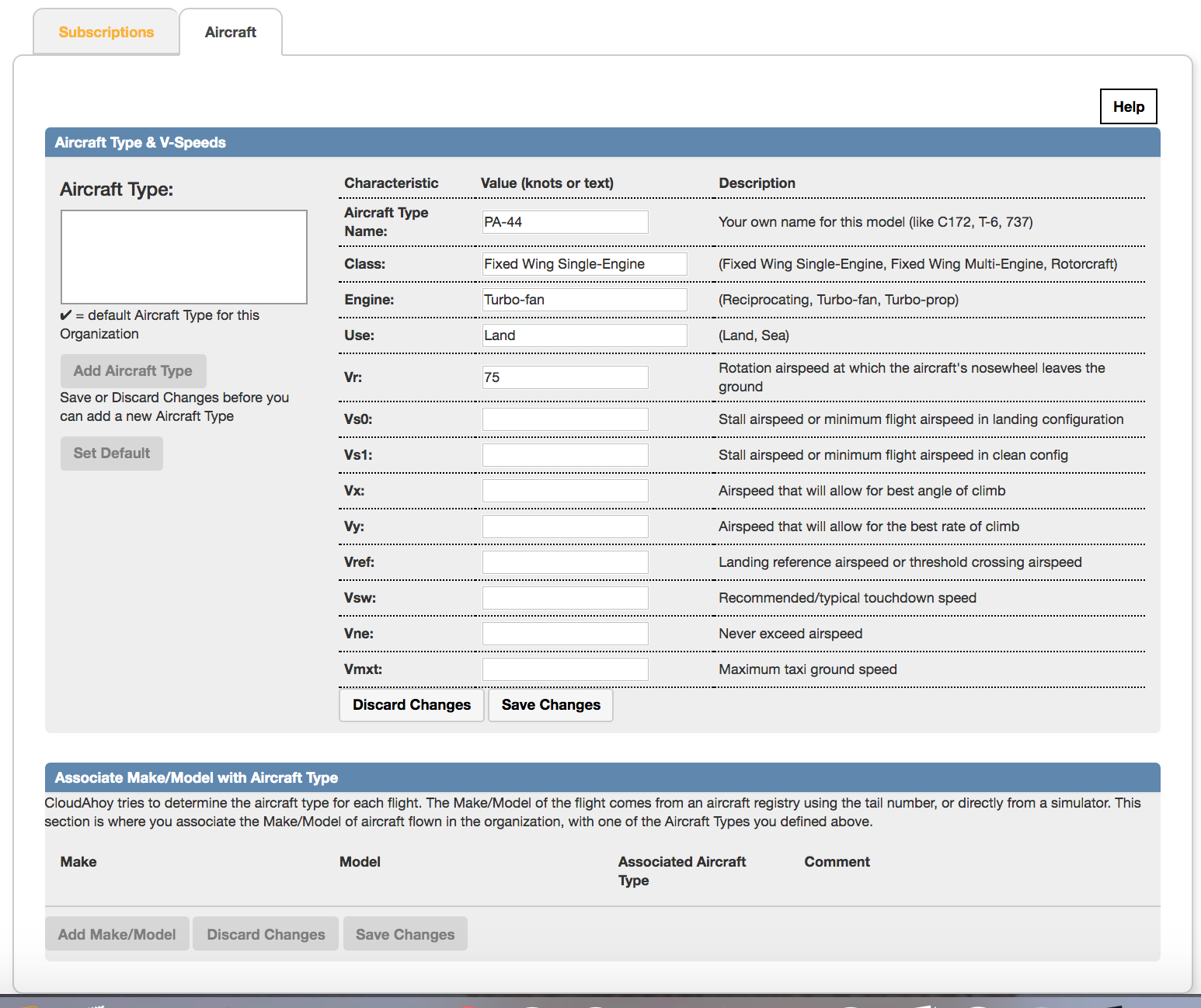
Finish typing in the values (you can always edit it later) ⇒ click “Save changes”
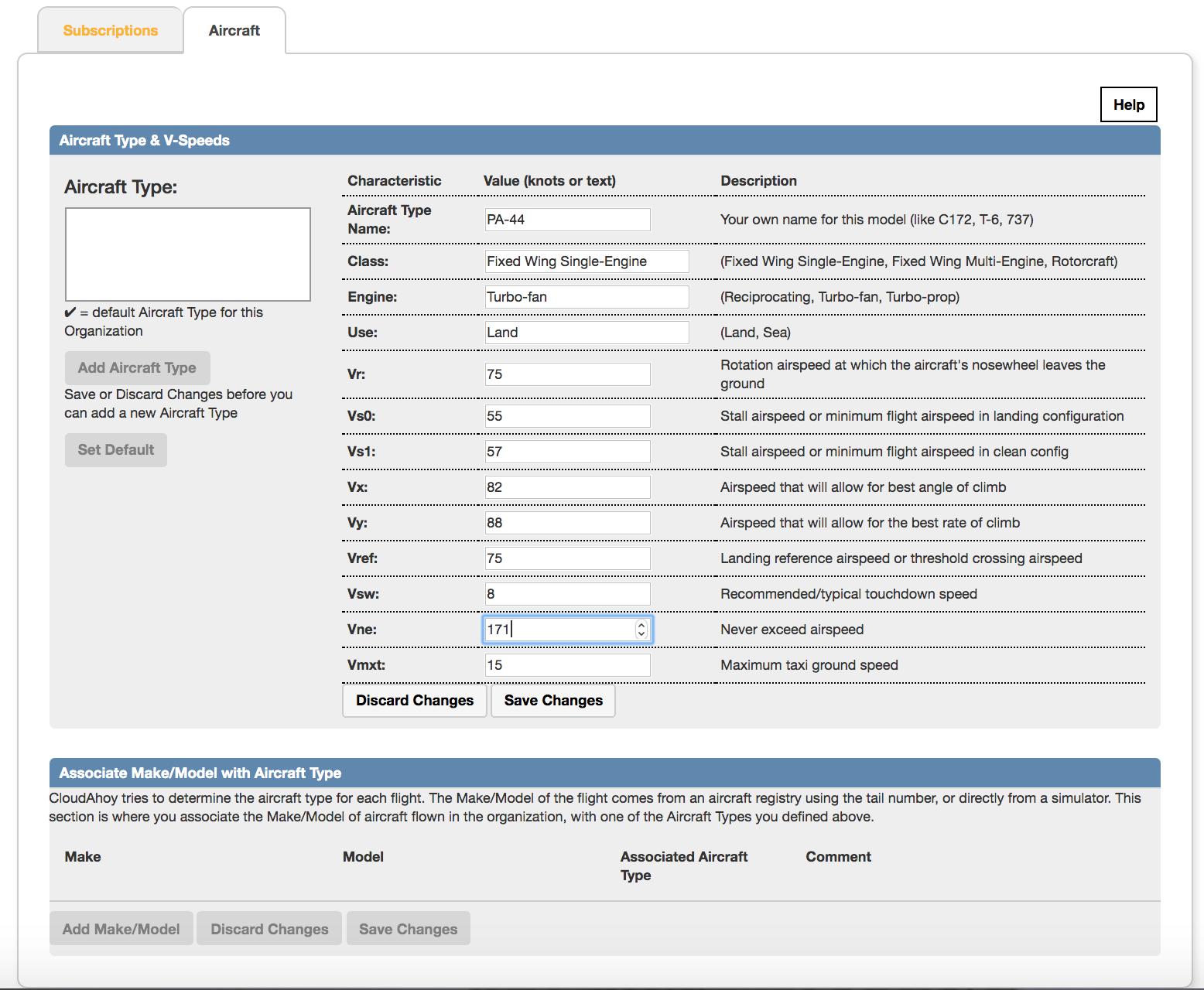
After click on “Save changes” the new “Aircraft Type” (PA-44 in this case) is now showing in the “Aircraft Type” box on the left. You may click on the “Add Aircraft Type” button again to add another.
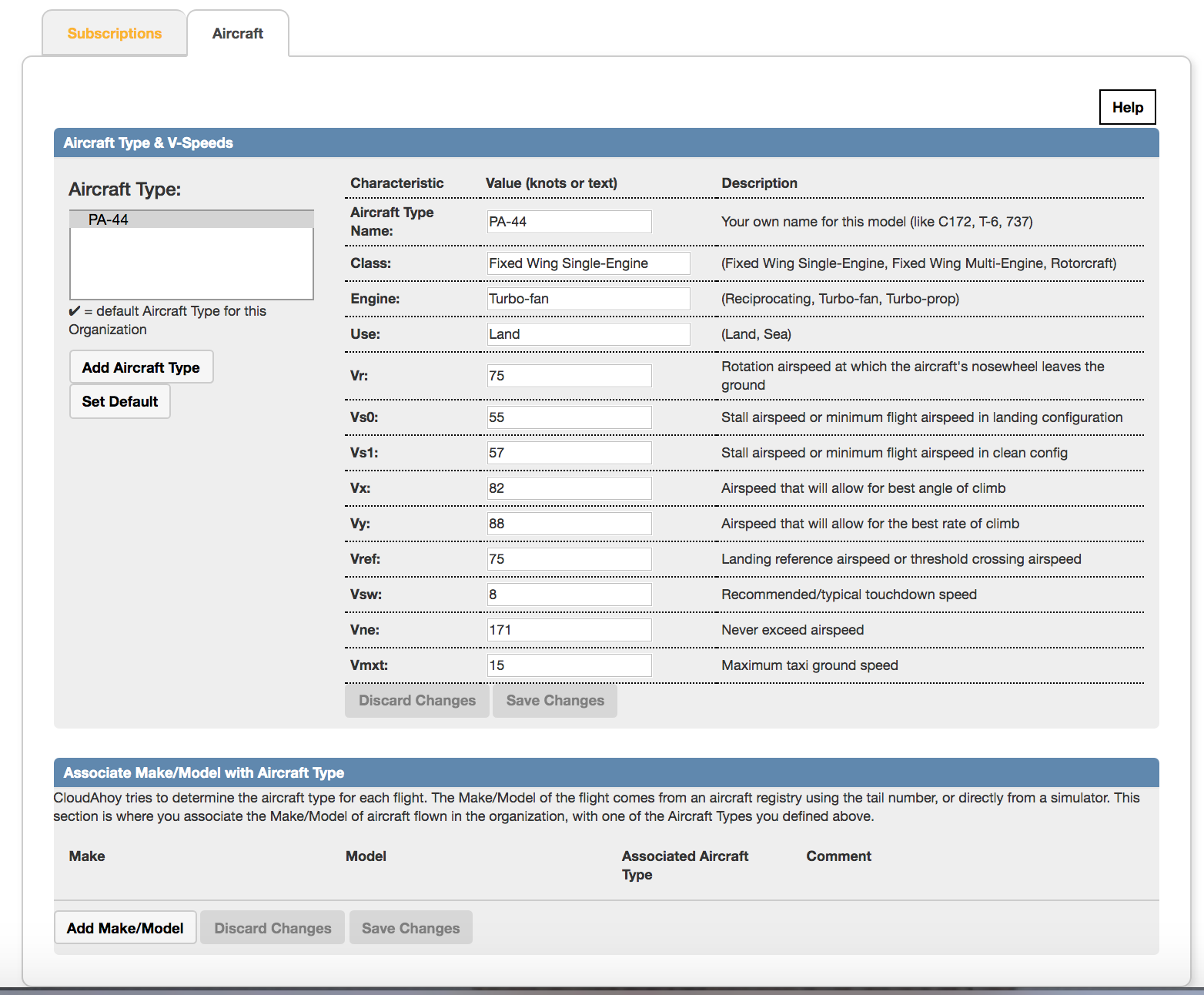
Step 2: Associate Make/Model
In this step we associate the Make/Model from external source with the Aircraft Type defined for the organization. For that, the admin needs to know exactly what is the Make/Model reported by the external source.
Find out the Make/Model
The admin should find out what are the Make/Model which are reported for the specific airplanes (simulators and live).
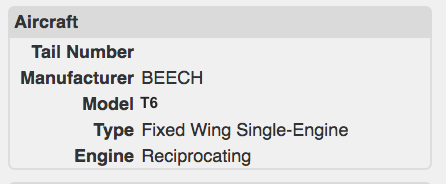
One simple way to find out what’s the Make/Model is to look at a flight which was already logged in CloudAhoy.
To do that, go to the Flights tab, and look at the Aircraft section – you will see something like the screenshot on the right →
The Manufacturer is the Make, “BEECH” in this case.The Model in this case is “T6”
Associate!
- Enter those values into the Make and Model fields.
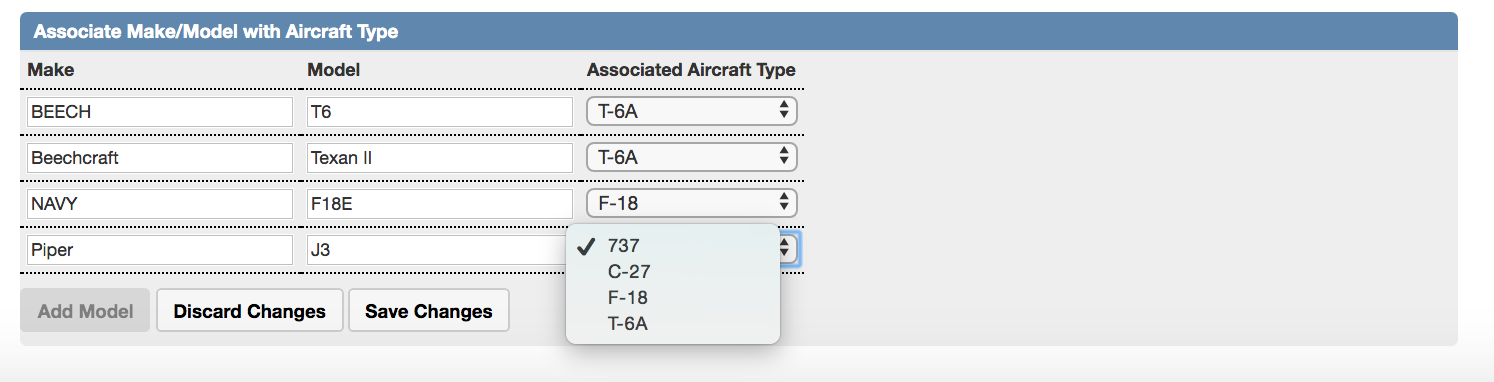
- Click in the “Associate Aircraft Type” field – you will see a list to select from, which is defined in the section above – select the appropriate one.
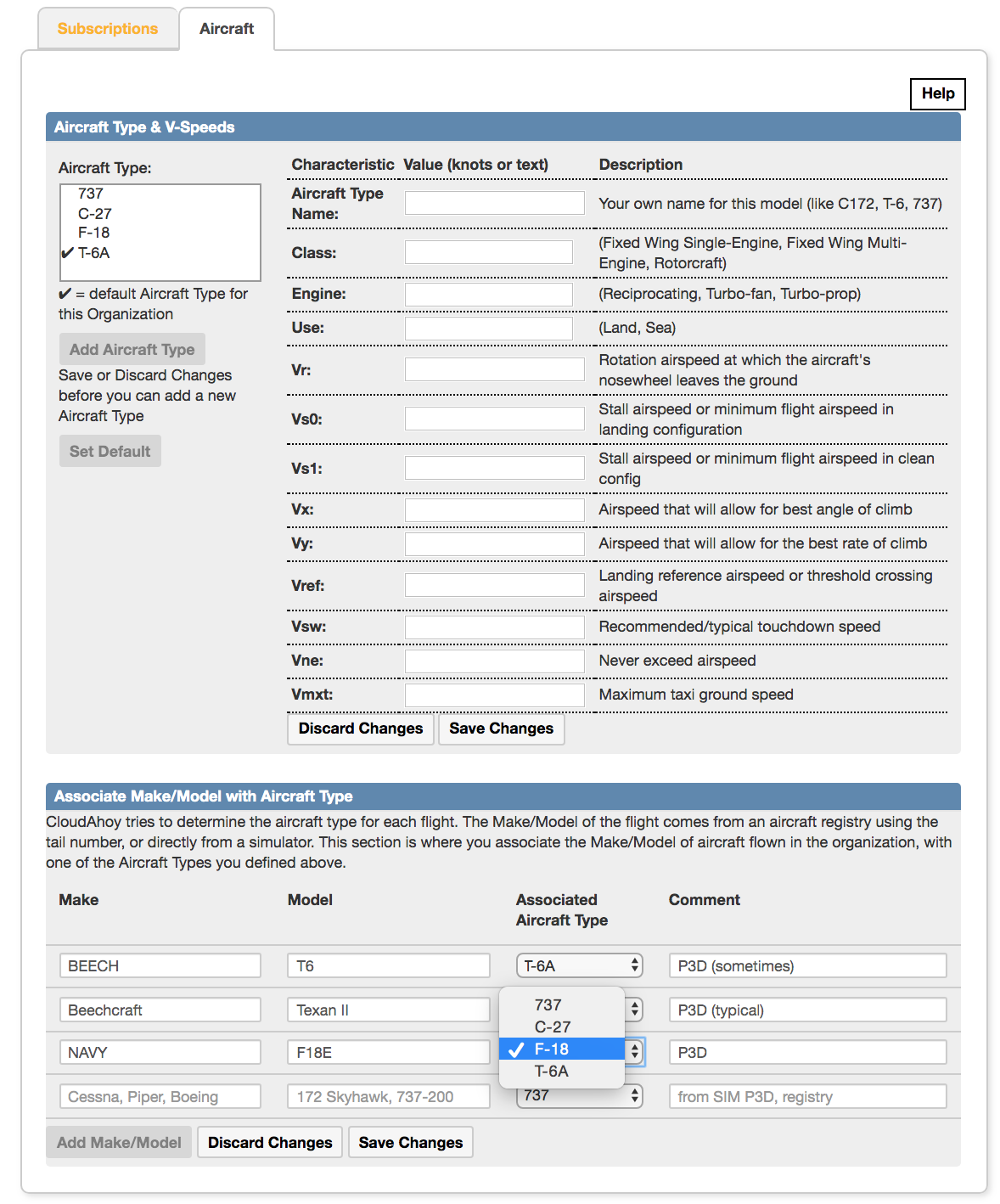
If the appropriate Aircraft Type is not defined then you should go back and define it. In the screenshot bellow the admin is adding a Piper/J3, and there is no matching Aircraft Type. In this case
- Click the “Discard Changes”
- Click the “Add Aircraft Type” above and add Piper
- Come back to the “Associate Make/Model with Aircraft Type” section and click the “Add Make/Model” button again, now you can select the Piper to associate with.