Summary
Log a flight to ForeFlight’s track logs and then…
- Method 1, iOS-based: use ForeFlight share to export a track log to CloudAhoy’s iOS app.
- Method 2, web-based: Download the a track log from ForeFlight’s web site, then import it into CloudAhoy.
Importing Track Logs
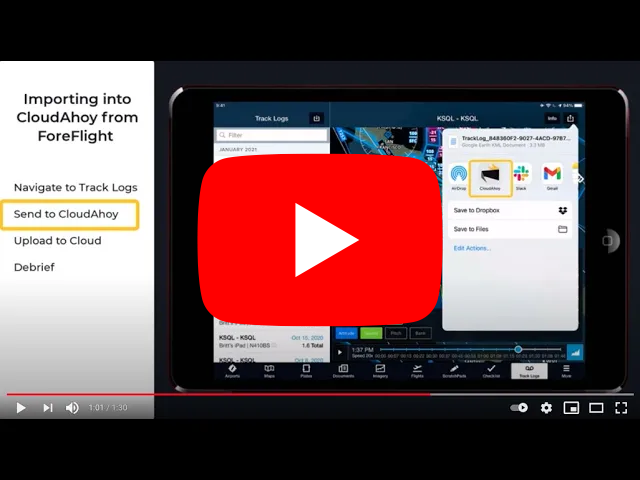
Logging the flight in ForeFlight, and then importing ForeFlight’s track log to CloudAhoy, is a convenient alternative to logging the flight with the CloudAhoy app. If you are using Stratus or Sentry, importing the track log from ForeFlight is the only way to use the superior accuracy of Stratus or Sentry in CloudAhoy and optionally the AHRS data.
The imported data also includes ForeFlight’s route as well instrument approach if one was identified. These items will be displayed on your debrief. You can edit the imported route using the Intended Flight Path tool. See our blog post for more information.
Importing a Flight From ForeFlight
Method 1, iOS-based – Import from ForeFlight on your iPad or iPhone:
The CloudAhoy App can import flights shared to it by ForeFlight.
- Open the ForeFlight app, navigate to Track Logs, and open the flight you want to import
- Tap the Share button
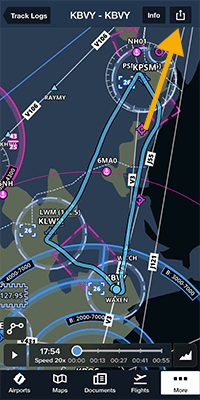
- Tap Open KML In
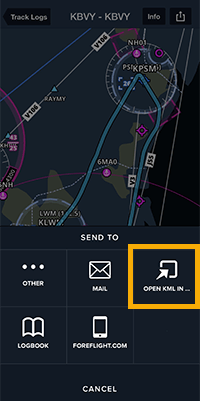
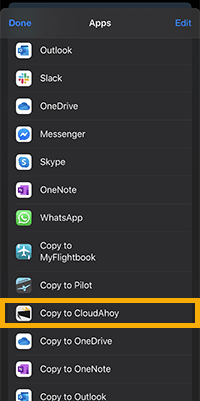
- If CloudAhoy doesn’t show up in the list, tap the More button
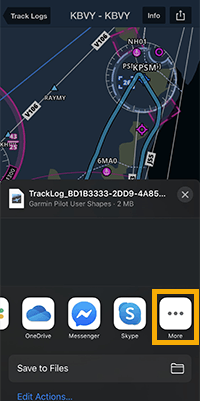
- Locate and tap Copy to CloudAhoy
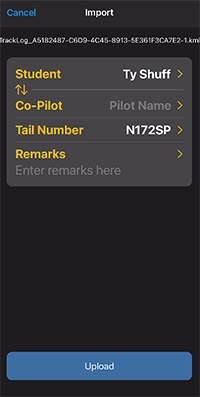
- Complete the import in the CloudAhoy App
Method 2, web-based: Download the file and drop into CloudAhoy
Pilots may also upload their flights using the web based version of CloudAhoy and ForeFlight using a laptop or desktop computer.
- Login into your ForeFlight account at http://plan.foreflight.com/
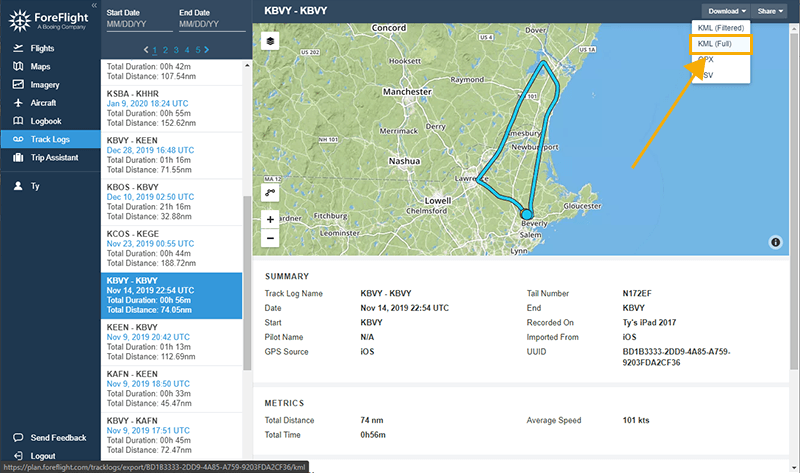
- Click Track Logs on the left.
- Click Click Downloads > KML (Full).
- Save the KML file in an easy to remember location, like your desktop
- Login into your CloudAhoy account at http://www.cloudahoy.com/
- Click the Import button on top bar.
- Enter the flight information including tail number and pilot(s) name(s).
- Drag the file into the designated area. Or click choose files and select the file for import.
Importing multiple flights
If you downloaded several track log from ForeFlight’s web site, you can import multiple files by dragging them into the drop area in the dialog box, or by clicking choose files and selecting the files for import.
AHRS
If you are using Stratus 2/2s/3, or Sentry, both methods will import the AHRS data. The AHRS data will be used in cockpit view instead of the computed attitude. Additionally, CloudAho Pro subscribers will see an accurate depiction of their attitude on the 3D Track view. Note that AHRS data is not included if you import the GPX file on the web – always import the KML.Logging a flight in ForeFlight
Automatic logging:
This is the preferred way. From More… > Settings, set “Enable Auto Start/Stop”. Note that this is the default setting
Manual logging:
Only useful if you decide not to eable auto logging. In ForeFlight’s Maps tab, tap REC before the flight, and stop the recording after the flight. If you are using Stratus or Sentry, it logs the data automatically and you can access the flight logs in ForeFlight’s More > Devices (see the note about AHRS below).
Log with CloudAhoy or ForeFlight?
If you’re running ForeFlight on an iPad, we recommend having ForeFlight create the track log and exporting it to CloudAhoy after landing, as described below. If you use a WiFi device like Stratus or Sentry, always use ForeFlight to log the flight because the CloudAhoy app does not communicate with WiFi devices.If you’re using the internal GPS in the iPad, you may consider logging the flight with an iPhone using CloudAhoy’s app: you might get a better GPS signal if you can mount the iPhone for better sky visibility than the iPad’s. When in doubt, try logging the flight with both devices and compare the results.
Further Reading
Import a KML file
Using AHRS Data
ForeFlight track log, in Sporty’s iPad News read about CloudAhoy integration at the bottom of the post.