Summary
- Download the app to your iPad, sign up, and login
- Pre-Flight Tab: Tap the Record button to log a flight
- In-Flight Tab: Place markers and add custom maneuvers to your flight
- Post-Flight Tab: Perform a data driven post-flight debrief

First Login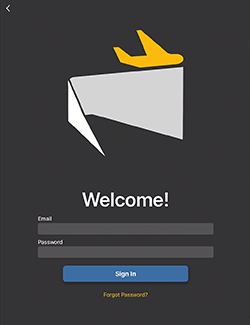

- If you do not currently have a CloudAhoy account, tap Sign Up
- An activation link will be emailed to you
- Log in using your email and password
- When prompted for location settings
- Select Allow While Using App
- Make sure Precise is set to On
- If prompted to allow local network access
- Tap OK
- CloudAhoy uses local network access to collect data from Flight Simulators
Pre-Flight Tab
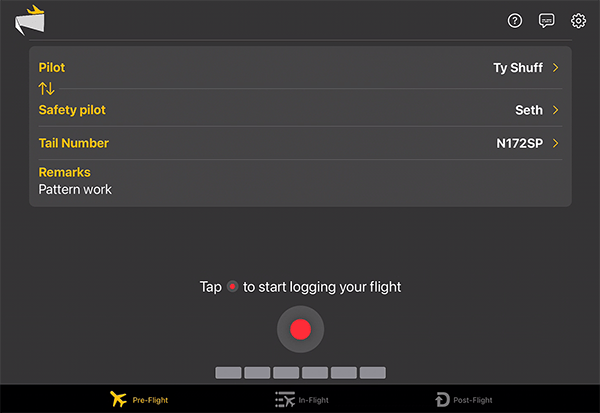
The Pre-Flight Tab is where you will log a flight.
Before engine start:
- Your name should already be entered with the Pilot role selected
- Change your role by tapping on the chevron
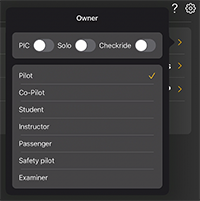
- If you have a copilot, enter their name and tap the chevron to select their role
- Enter your aircraft’s tail number
- Tap Record
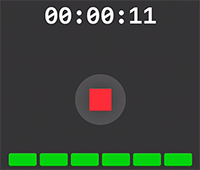
 to start recording. The status lights will change over tie to indicate GPS quality.
Tip
Add a Start CloudAhoy item to your checklist, before Engine Start.
After landing:
- If you have enabled Auto Stop, the data logging will stop automatically.
- You can manually stop logging by tapping the STOP
 button
- You can manually stop logging by tapping the STOP
- Data will upload automatically to the CloudAhoy server.
In-Flight Tab
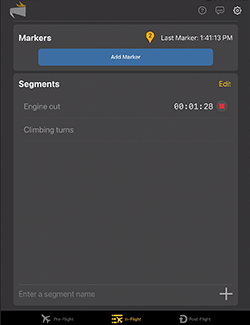
Use the In-Flight tab to mark events and create custom segments to be used during a flight.
Markers
Markers allow you to drop a “pin” at the current location which will appear in the 2D track view of your debrief. You can use markers to note a spot in the flight you want to return to later.
Some examples:
- CFIs: use Flight Markers to mark talking points for the debrief with the student
- Aerial photography: use Flight Markers to mark locations where photos were taken
- S&R: use Flight Markers to mark locations where something was spotted
Add a new marker by tapping Add Marker. The pin will display the number of markers that have already been dropped on this flight.
Segments
Custom segments allow you to create your own flight segments. These segments will be shown separately from other segments when debriefing. You can add segments ahead of time and start/stop them as needed during your flight. Custom segments are useful for tracking events that CloudAhoy does not recognize like engine out procedures.
Post-Flight Tab
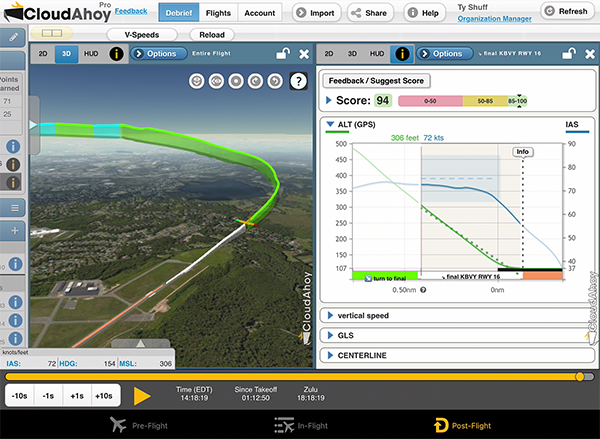
Pilots can use the Post-Flight tab when they are back on the ground to debrief any flight. By default, the most recent flight will be shown when you open this tab.
You can select one or two views by clicking the Split button in the upper left corner. Each view can be set to 3D Track, 2D Track, 3D Cockpit (HUD), or Segment Information.
Use the Refresh button (top-right) if unsteady internet connection had caused display problems. Alternatively, you can switch to another tab and then back to the Post-Flight tab.
In landscape mode two views will appear side by side, and in portrait mode they will be stacked.
See the Debriefing with an iPad for more information.
Please Note
An active internet connection is required to debrief a flight.
Settings
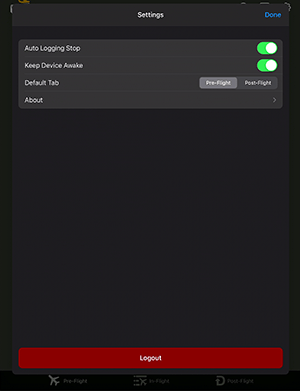
Access settings by tapping on the gear icon  on the Log Tab.
This view allows you to set several options for the app:
- Auto Logging Stop: on by default. Auto-stops the logging after you land, taxi and park. You may want to disable auto-stop for prolonged helicopter hovers, or for cases when you stop for several minutes after landing and then takeoff again. If you disable auto-stop, you should manually stop the logging after landing.
- Keep Device Awake: allows the screen to lock, and the app to run in the background. Normally you should leave it On.
- Default Tab: Sets the default tab when the app is opened. Set this to Post-Flight if you do not use any of the logging/importing functionality in the app. For Organizational users: This setting will override your organization’s default tab setting if it is set.
Tab About to see the currently logged in user, app version, and links to CloudAhoy’s social media pages.
Aircraft Type & Formation
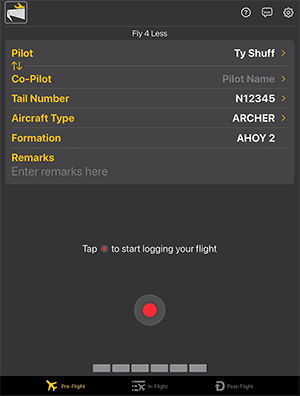 Some organizations will have access to additional options on the Pre-Flight screen.
Aircraft Type
Use this option to tell CloudAhoy what type of aircraft you are flying. This list is populated by organization admins via the Organization Manager. The app will always default to the last value you selected.
Formation
If your organization has formation capabilities, enter your formation callsign and ship number. CloudAhoy will try to automatically detect other ships in your formation.