Important
The CloudAhoy Android App is no longer officially supported. Refer to Importing Flight Data for other ways to record and import your flights.Configure Location Settings
To function properly, the CloudAhoy app will need to be able to always access your GPS. Failure to do this will likely result in incomplete flight data. Please note: the app only records your location when it is opened and actively recording a flight, it does not collect your location at any other time.
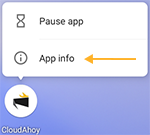
1. To make this change, locate the CloudAhoy app on your Home Screen, long tap the icon, and select App Info.
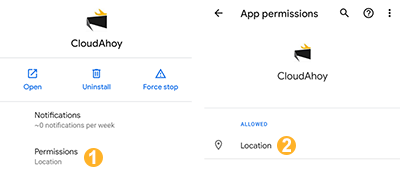
2. Next tap Permissions and then Location.
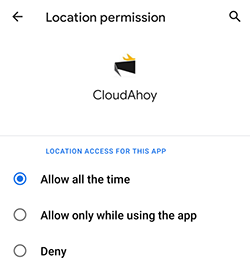
3. Finally, select Allow all the time
Once-only, after downloading the app
- If you do not have yet a CloudAhoy account, create a new account.
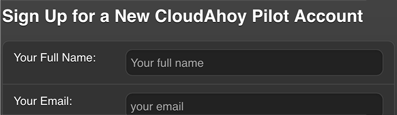
- Login to your account.
The main (cockpit) tab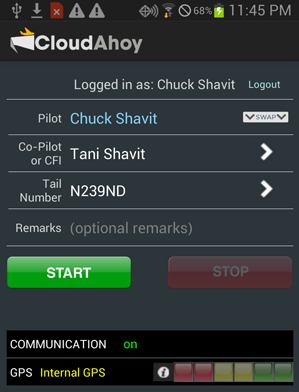
This is where you log the flight.
Before engine start:
- Your name is already entered as the Pilot. If you are the co-pilot or the CFI, tap the SWAP button.(optional) enter the name of the other pilot, if any. Type the name, or use the right chevron > to select a buddy’s name.(optional) enter the tail number. Type it in full, or or use the right chevron > to select a previously flown aircraft.
(optional) enter remarks. - Tap START . Verify good GPS reception – the GPS lights should be green █ .
tip
Add a Start CloudAhoy item to your checklist, before Engine Start.
After landing:
- The data logging will stop automatically. But you can always stop the logging manually by tapping STOP.
- Data will upload automatically to the CloudAhoy server.
The Settings tab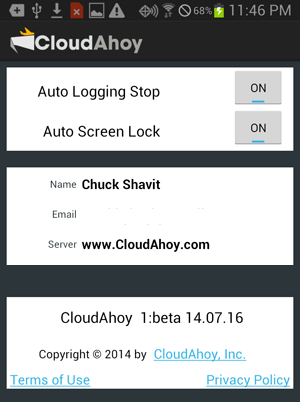
Press Menu  > Settings. This tab allows you to check which account is logged in. Also, you can set these options:
- Auto Logging Stop: on by default. Auto-stops the logging after you land, taxi and park. You may want to disable auto-stop for prolonged helicopter hovers, or for cases when you stop for several minutes after landing and then takeoff again.
- Auto Screen Lock: allows the screen to lock, and the app to run in the background. We recommend leaving it On.
Android and External GPS Devices
When using an external bluetooth GPS with your Android device, some extra work needs to be done. The following describes the general way of doing it:
Tweaks
Specific Android devices may need specific tweaks. Refer to your external GPS instructions.- Apps > Settings > Bluetooth: set to On and pair your external GPS device.
- Apps > Settings > Developer Options > Allow mock locations.
- Download and install an NMEA-compatible GPS app, such as Bluetooth GPS.
- Run the app and set it up as needed for your devices.
- Now CloudAhoy receives data from your external device.
We recommend testing this at home or at the FBO. Do not forget to run the GPS program when using the external GPS.
Further Reading