Summary
AirSync provides a way to automatically upload flights from G1000 to CloudAhoy.
- Link your AirSync Account with your CloudAhoy account
- Select aircraft to automatically upload flights
- Upload flights manually
To learn about AirSync see https://air-sync.com/pages/installation.
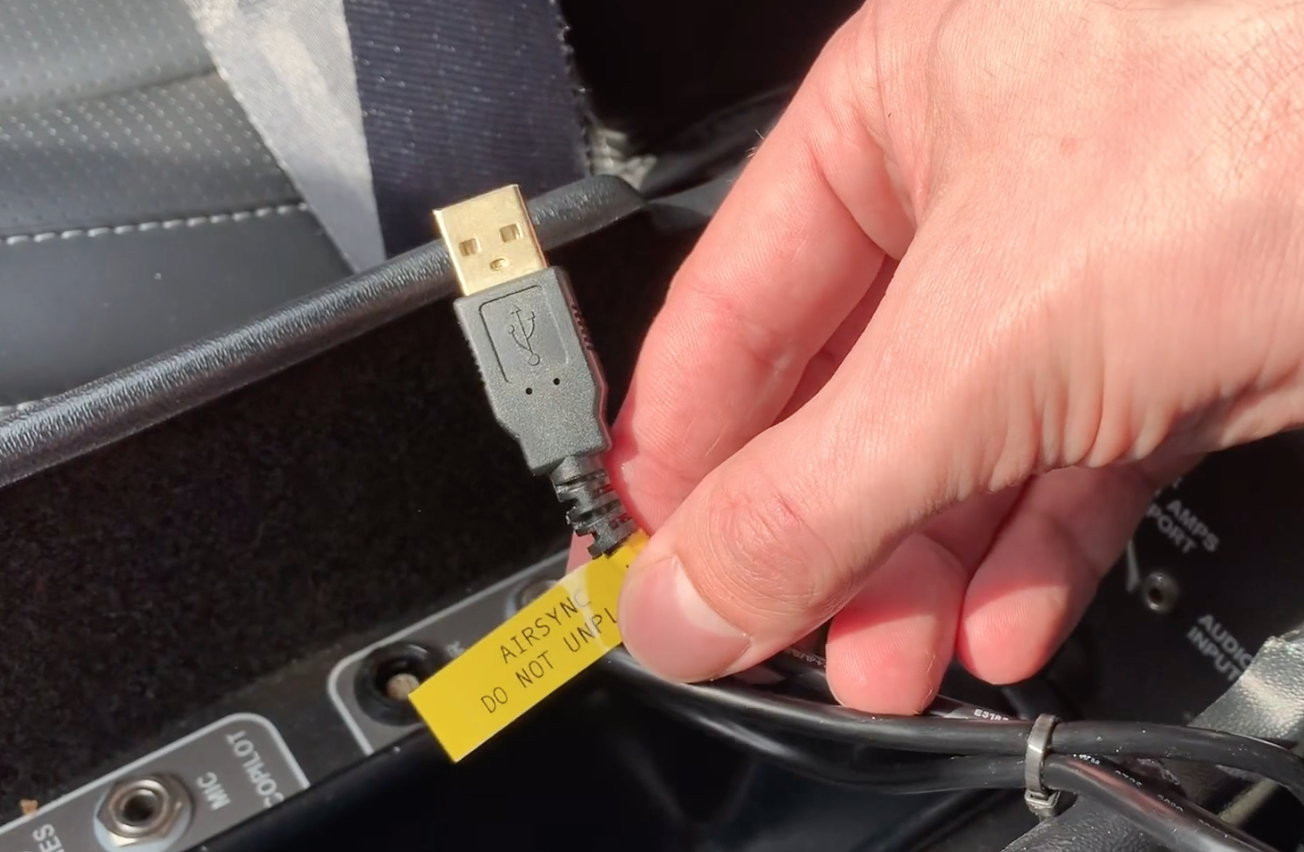
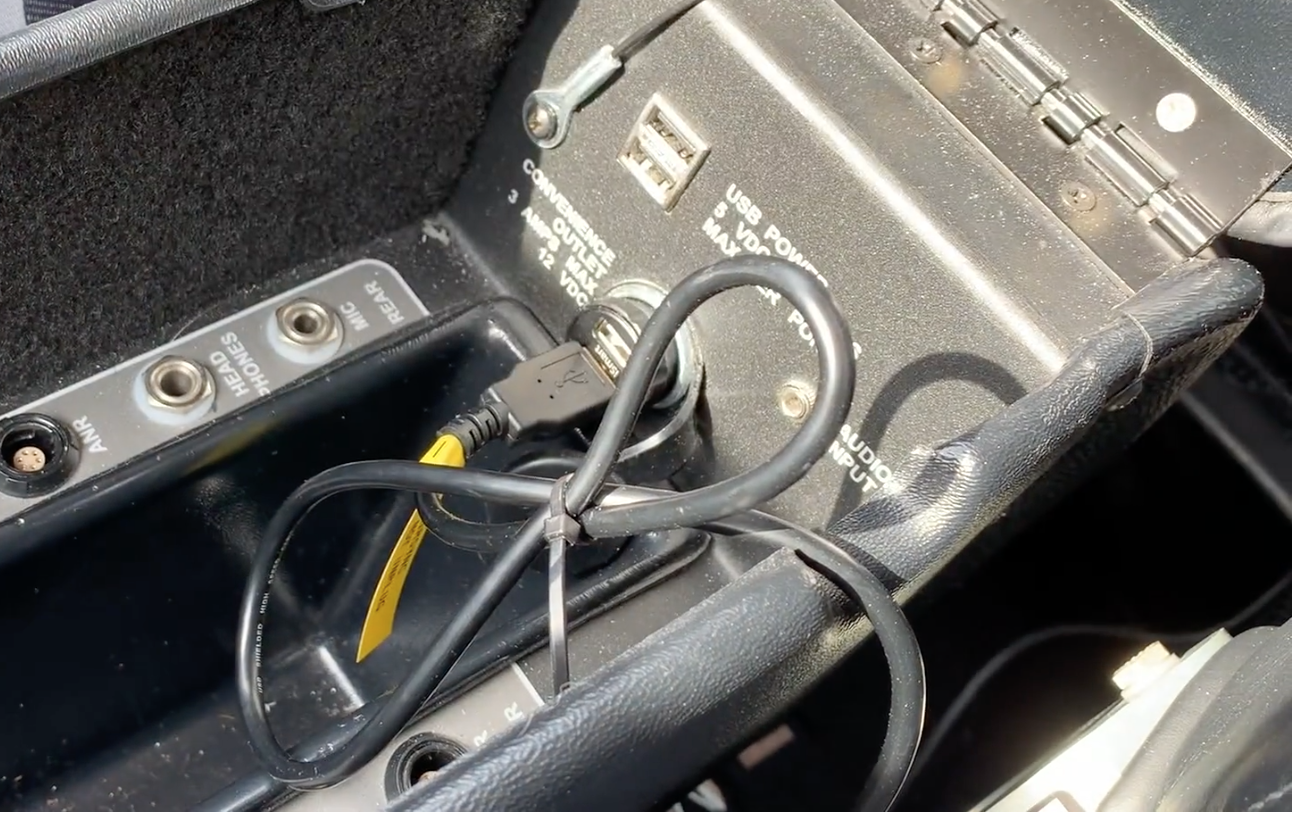
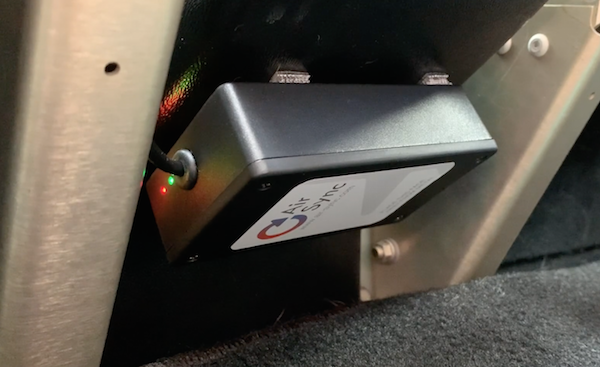
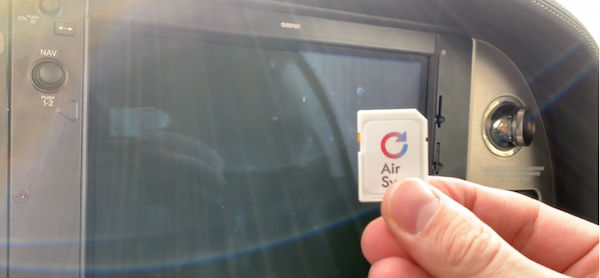 Quick overview in pictures:
– Replace the existing SD card with AirSync SD card
– Plug the AirSync Bridge
– Mount the AirSync Bridge
Flights logged via AirSync can be automatically uploaded to your CloudAhoy account.
To accomplish this, you will need to link your AirSync and CloudAhoy accounts. Once this is done you can choose flights to upload, or have them uploaded automatically.
Connecting your CloudAhoy Account to AirSync
First you will need to link your AirSync account to your CloudAhoy account.
- Log into your AirSync Account
- Click on the Accounts tab and select your account
- Select Services and CloudAhoy
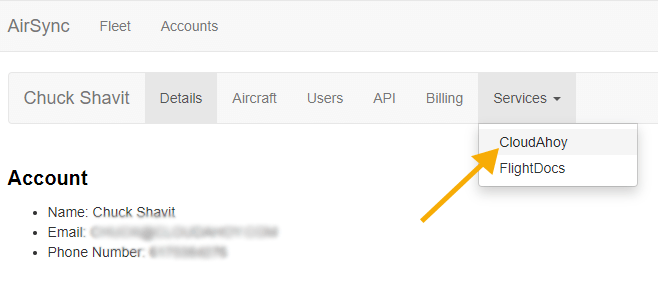
- Click Authorize CloudAhoy
- Log into your CloudAhoy Account if necessary
- Click Allow Access to give AirSync permission to upload flights to your account
Enable Automatic Uploading
You can configure each aircraft to upload to your CloudAhoy account automatically.
- Click on the Fleet Tab
- Locate and click on the tail number you want to enable this feature for
- Select Services and click CloudAhoy

- Check Enable flights to be automatically uploaded and click Update
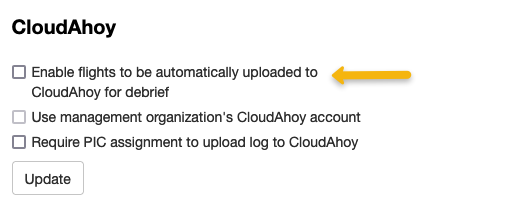
Each new flight will now be automatically uploaded to your CloudAhoy account when transmitted to AirSync. This will not upload past flights. See below for manually uploading flights.
Manually Uploading Flights
Once your account has been linked you may choose to manually upload flights (see above for automatic uploading). There are two ways to upload a flight.
From AirSync’s the Home Page
- Locate the flight you want to upload under Recent Flights and click the Details button

- Click on the CloudAhoy Upload button

- The flight will load and appear in your CloudAhoy account. AirSync also opens a link to the flight in a separate tab.
From the Fleet Page
- Click on the Fleet Tab
- Select the aircraft that was flown
- Click on Legs
- Locate the flight and click Details
- Click on the CloudAhoy Upload button
- The flight will load and appear in your CloudAhoy account. AirSync also opens a link to the flight in a separate tab.