Summary
Garmin Pilot automatically creates a track log of each flight. You can easily upload that track directly into CloudAhoy for debrief.
Uploading the automatically created track log from Garmin Pilot into CloudAhoy is a convenient alternative to logging the flight with the CloudAhoy app.
Important: The CloudAhoy app must be installed on the same device as Garmin Pilot for the upload.
Setting up Garmin Pilot to log flights:
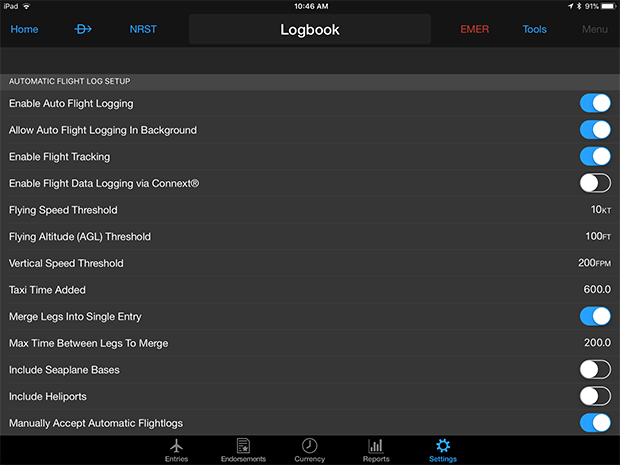
Important: to include logging of the landing in the track log, you must change Garmin Pilot’s default Settings. Use setting like this:
Importing from Garmin Pilot on your iPad or iPhone:
1. Open Garmin Pilot, select Logbook from the Home menu.
Garmin Pilot on iOS
Garmin Pilot on iOS will automatically create a track of your flight and attach the file to the entry in your pilot logbook. You may view a track on the map by:– Selecting Show on Map from the logbook entry
– Adding the Logbook Tracks widget from split screen mode and choosing a track
Tracks may be shared via a GPX format by selecting the Apple share icon from the logbook entry and choosing the method of sharing.
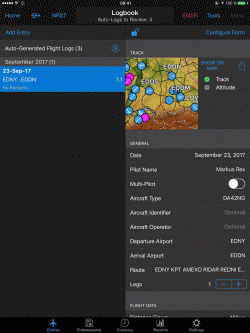
Your flights are show up in the list on the left, either in the list directly, or in the Auto-Generated Flight Logs list (at the top).
2. Select the flight you want to export to CloudAhoy.
 |
3. Tap the Share-button  to the right of the small map.
4. Select Copy to CloudAhoy by tapping on the CloudAhoy icon – the CloudAhoy app will open.
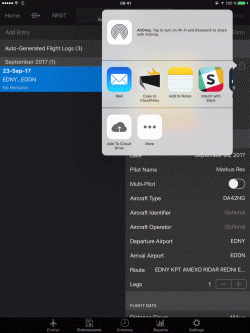
Note that you may need to swipe the row of icons to the left to see CloudAhoy.
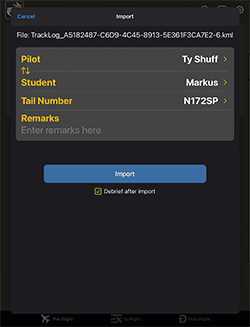
5. Tap Import Flight.
Further Reading
Garmin Pilot makes the flights available as .gpx files. We have additional information about Importing a GPX file into CloudAhoy.